Tag: tools

  • Best Grammar Checker Tools: These 9 Will Make Your Writing Super Clean

    Best Grammar Checker Tools: These 9 Will Make Your Writing Super Clean

    Have you ever wanted a magical editing wand?

    Just imagine: A flick of the wrist is all that would stand between you and the end of editing your writing. No frustration. Minimal time investment. An amazing manuscript or blog post.

    Alas, no such magic wand exists.

    But we do have grammar checker tools, which are the next-best things.

    Just remember grammar checkers are designed to make editing easier, not to eliminate the work completely.

    [sps_reusable_block post_id=43061]

    Putting the best grammar checker tools to the test

    During self-edits on my latest manuscript, I experimented with editing tools, both free and paid, to determine which could be most beneficial to The Write Life’s audience. Besides being an author, I’m an editor, so I also weighed each tool against what I’d look for when editing.

    Since editing has a broad definition — basically anything that improves your writing — it’s not surprising that the tools I tried had different functions, from checking grammar and style to eliminating unnecessary words, to identifying areas for improvement.

    What you want in a grammar checker or editing tool will influence which one(s) you choose. No one tool can do it all — nor can one of these tools wave away the work and critical thinking necessary for a well-edited blog post, magazine article or book.

    A grammar checker doesn’t replace a human editor. Because language rules and elements of a good story can be so flexible, human eyes will always be superior to the rigidity of automatic tools.

    Here are 9 of the best grammar checker tools.

    1. ProWritingAid

    What It Does:  ProWritingAid is a web editor and plugin that will clean up your writing by detecting grammar and spelling mistakes, plagiarism and contextual errors. It also analyzes your writing and produces reports on writing style, sentence length, grammar, and repeated words and phrases.

    Price: There’s a limited free version. If you upgrade to the premium membership, you can edit in Google Docs or Microsoft Word, access a desktop app and Chrome add-ins, and — best of all — lose the word-count cap.

    A monthly membership is $20, a year’s membership is $120,  or go the whole hog and buy a lifetime membership for $399.

    Who It’s For: Anyone, including students, authors, freelancers or ESL writers.

    How It Works: Click on “Try the editing tool,” create a free account, then paste in your text.

    The Best Part: ProWritingAid has a premium option, but most of the areas you’ll want checked are available for free.

    What Would Make It Better: Though ProWritingAid checks grammar, I slipped in a your/you’re mistake without getting flagged. I wasn’t overly fond of the tool’s inability to work offline, but its overall functionality is hard to argue with.

    Our Recommendation: Use ProWritingAid in the self-editing stage to guide your edits. 

    More Details: For an in-depth explainer of ProwritingAid’s free and premium versions, check out our full ProwritingAid review.

    2. AutoCrit

    What It Does: AutoCrit analyzes your manuscript to identify areas for improvement, including pacing and momentum, dialogue, strong writing, word choice and repetition. Depending on what plan you choose, you can also compare your writing to that of popular authors like Danielle Steel or James Patterson.

    Price: Three different plans are available: the “Free Forever” plan, which is free; the “Professional” for $30, or the “Annual Professional” for $297 per year. The latter offers a built-in discount of two months free every year. 

    Who It’s For: Fiction and non-fiction writers.

    How It Works: Paste your text into the online dashboard or upload a document and click on AutoCrit’s tabs to see its analysis. This tool uses data from various genres and more than a million books to provide a word-by-word level analysis of your writing and shows easy ways to improve the readability of your work.

    The Best Part: I spent the most time in the “Compare to Fiction” tab, which provides a comprehensive look at common issues. It highlighted my tendency to start sentences with “and” and “but,” and identified my most repeated words. I felt like I learned something about my writing, and that’s something I don’t think I could say about some other tools.

    What Would Make It Better: A more accurate definition of passive voice. It highlights any use of the “be” and “had” verbs, neither of which fully capture passive voice (you need a past participle in addition to a “be” verb), and many active voice constructions were falsely labeled as passive.

    Our Recommendation: AutoCrit is great to guide your edits in the self-editing stage. It’s best used for developmental edits, rewrites and avoiding common writing no-nos.

    More Details: For an in-depth explainer of Autocrit’s Free Forever and paid versions, check out our full Autocrit review.

    3. Grammarly

    What It Does: Grammarly is a grammar checker and proofreader.

    Price: A limited version is available for free, and Grammarly also offers a number of other free services such as a wordiness checker and tone detection. The business plan starts at $25 per member per month. For the most up-to-date info on Grammarly pricing, see their website. 

    Who It’s For: Anyone, including writers, business people and academics.

    How It Works: Copy and paste or upload your text into the online dashboard and let Grammarly work its magic. It flags potential errors, gives suggestions and provides an explanation so you can learn why it suggests the change. There’s also a free Grammarly Add-in available for Microsoft Word and a Grammarly for Chrome extension that’s also compatible with Google Docs.

    The Best Part: Grammarly is easy to use and pointed out a vocabulary issue or two that none of the other tools did. It’s superior to Microsoft Word’s grammar checker. Its synonym suggestion feature is pretty nifty, too.

    What Would Make It Better: As an editor, I work with many styles of writing, so it’d be helpful if Grammarly provided the option to switch between a few to ensure writers receive fitting suggestions to improve their work. For example, if you don’t use the Oxford comma, the editor will prompt you to do so, which isn’t right for all writing styles. 

    Our Recommendation: Grammarly is best for the final proofreading stage, or for people who want to learn more about the technical aspects of grammar. If you’re an editor or strong writer, you might find yourself ignoring more flagged items than you fix.

    More Details: For an in-depth explainer of Grammarly’s free and premium versions, check out our full Grammarly review. You can dig deeper into Grammarly features and benefits here.

    4. Hemingway Editor

    What It Does: Hemingway Editor is like a spellchecker, but for style. It provides a readability score — the lowest grade level someone would need to understand your text — and analyzes your writing to identify areas for improvement. Because it doesn’t require an internet connection, you can use it anywhere.

    Price: Free online, and a one-time payment of $19.99 for the desktop version, which is available for both Mac and PC.

    Who It’s For: Anyone

    How It Works: Paste your text into the dashboard and scan for highlighted sections of text. The highlighted text is color coded depending on your area of improvement, whether it’s hard-to-read sentences, the presence of adverbs, or passive voice.

    The Best Part: In addition to providing examples on how to fix passive voice or complex phrases, Hemingway Editor also identifies how many “-ly” adverbs and passive voice constructions you’ve used and suggests a maximum number based on your word count.

    In my prologue, for example, I had one use of passive voice, and Hemingway Editor suggested aiming for six uses or fewer — which I nailed. These recommendations reinforce the idea that not all adverbs or passive voice constructions are bad, and that’s something other tools miss.

    What Would Make It Better: Hemingway Editor was the cleanest and easiest to use of the free editing tools, but it’s not a true grammar checker or proofreader. Even though it’s not meant to catch grammar and spelling mistakes, any editing application that catches those mistakes is instantly more attractive.

    Our Recommendation: Use Hemingway Editor to increase the readability of your writing and identify problem sentences during the copyediting stage, but supplement your efforts with a grammar and spell checker.

    5. WordRake

    What It Does: WordRake cuts out the unnecessary words or phrases that creep into your writing. It works with Microsoft Word and Outlook, depending on which license you purchase. I tested the Microsoft Word version.

    Price: The Microsoft Word version is available for Mac or Windows, and you’ll pay $129 for a year or $259 for three years. The Microsoft Word and Outlook package version is only available for Windows, and it costs $199 for a year or $399 for three.

    Who It’s For: Bloggers, authors and editors using Microsoft Word or Outlook.

    How It Works: WordRake is an add-in for Microsoft products and requires you to install the program before using it, though it’s as easy as following the instructions. Select the text you want to edit, then use the WordRake add-in. It uses Track Changes to suggest edits, which you can accept or reject.

    The Best Part: WordRake is as close as you can get to an automatic editor. It appealed to me more as an editor than a writer, but it’s great at eliminating unnecessary phrases and words that bog down your writing.

    What Would Make It Better: I threw a your/you’re mistake in to see if WordRake would catch it. It didn’t, even though Microsoft Word flagged it. If WordRake could catch common writing mistakes like your/you’re or their/they’re/there in addition to unnecessary words, it’d be a hard tool to beat.

    Our Recommendation: WordRake is a great tool for the copyediting stage. Verbose writers, authors wanting to cut down on editing costs or editors looking to speed up their editing process will most benefit from WordRake. Watch out if you’re running Word on a slow computer: WordRake could increase your load time.

    6. Ginger Software

    What It Does: This AI-powered writing assistant and grammar and spelling checker works to improve your style and speed, plus boost your creativity. It also scans full, complex sentences and suggests context-based corrections. 

    Price: Ginger offers a free (but very limited) plan, so you’ll find it to be more effective through its premium offerings: $13.99 per month, $89.88 per year or $167.76 for two years. Heads up: It’s currently running a 30% off promo for all plans, so these prices may increase at any time. For most up-to-date pricing, check this page.

    Who It’s For: Anyone.

    How It Works: Whether you choose to download Ginger to your Chrome browser, as a desktop app or otherwise, all you have to do to get started is follow the setup instructions to install it. As an add-on or app, Ginger will highlight spelling, grammar and punctuation errors, and it’ll even help you rephrase sentences by giving you tons of alternative options.

    The Best Part: One word: cross-compatibility. Writers can download Ginger as a desktop app for Mac or Windows or directly into Google Chrome or Safari, and it works seamlessly with programs like Outlook, Microsoft Word and PowerPoint — you can even download it as a keyboard or app for Android phones and an app for Apple phones. 

    What Would Make It Better: Most grammar checkers offer a plagiarism detector, but Ginger doesn’t. Even if it only added it to premium plans, this would be a helpful feature to include. 

    Our Recommendation: Download Ginger If you have a good grasp of grammar and punctuation, and you need a grammar editor to back up your knowledge. 

    7. Scribens

    What It Does: Scribens is a free grammar checker that corrects more than 250 types of grammar, spelling and stylistic mistakes including nouns, verbs, prepositions, pronouns, homonyms, typography and punctuation.

    Price: Free for everyone.

    Who It’s For: Anyone, including writers, editors and authors of any genre, business people and academics.

    How It Works: Choose which extension(s) where you want to install Scribens, then download it and begin writing. To test it first, click ‘Grammar Check,’ then paste your text or import a file into the editor. Through color-coded suggestions, it’ll check your style, vocabulary, grammar and spelling, it detects patterns in your writing, and it grades readability. 

    The Best Part: You can download the Scribens extension in just about any place you’d need to write — i.e., social networks, websites with text zones (WordPress or forums), email platforms and more. Writers will be sure to enjoy this flexibility and the assurance that they can edit their writing right from any website or application. 

    What Would Make It Better: For a free grammar checker, Scribens offers more than the average free tool, but it’s not as intuitive as others on this list. I tested a simple their/they’re mistake and it didn’t flag it. It’s helpful that it notes bigger grammar errors like compound predicates, but as a grammar corrector, it should also be able to avoid smaller ones from slipping through the cracks.

    Our Recommendation: Use Scribens in the final stages of your copyediting. With minor issues out of the way, you can focus on addressing readability, syntax errors and stylistic elements with Scribens deeper analysis of your work.  

    8. WhiteSmoke

    What It Does: WhiteSmoke is a grammar checker and proofreading software that corrects spelling, word choice, grammar, punctuation and style mistakes. It also offers a translator and dictionary that supports more than 50 languages. 

    Price: WhiteSmoke offers three plans that include a web plan for $5.99 per month, which is compatible with all browsers. Its premium option is $6.66 per month. Its business option is $11.50 per month. For updates on pricing, check this page.

    Who It’s For: Students, professional writers and bloggers, business executives and employees and English learners.

    How It Works: After you register, choose a package and install this grammar checker, WhiteSmoke’s all-in-one English tool will provide grammar, spelling, punctuation and style checks when you click on highlighted text from any application or browser. 

    The Best Part: If you’re unsure about grammar rules during your writing process, check out WhiteSmoke’s handy video tutorials that focus on common writing problems and how to avoid them. Plus, if you need a template, it has more than 100 document and letter templates you can access.

    What Would Make It Better: Unfortunately, this grammar editor isn’t the most intuitive tool on this list, plus it has a limit of 10,000 characters at a time, where each letter, punctuation mark and space counts. (For reference, you can check 150,000 words on Grammarly!) If you write long-form pieces, this may not be the best tool to use to check your work. 

    Our Recommendation: WhiteSmoke offers many innovative features, but it shouldn’t be your main squeeze. Although it uses Natural Language Processing technology to enhance your writing, WhiteSmoke openly warns it won’t catch every grammar mistake, so supplement this checker with another one. 

    9. LanguageTool

    What It Does: A multilingual grammar, style and spell-checking software, LanguageTool is an Open Source application that checks your spelling, grammar, tone and writing style and instantly generates context-aware suggestions for more than 30 languages.

    Price: Besides the free plan that allows basic grammar checks of up to 10,000 words, LanguageTool also offers monthly or yearly plans for individual users. You can expect to pay $4.99 per month or $60 per year. For updates on pricing, check this page.

    Who It’s For: Anyone, including students, authors, freelancers, ESL writers and business people.

    How It Works: Try the grammar checker on the website’s homepage or download it as a Google Docs add-on or a Microsoft Word add-in. Write or paste your text into the editor, and it’ll underline your errors in red, yellow or blue to indicate whether you need to correct your spelling, grammar or style. 

    The Best Part: Similar to Hemingway Editor, you can take advantage of the web-based platform of this grammar corrector without the need to install anything. And because it’s multilingual, it offers a premium feature that detects gender while proofreading, which is super helpful when you’re unsure of how another language structures gender in writing. 

    What Would Make It Better: While they offer fun features like detection of incorrect numbers and of incorrect names and titles in emails, LanguageTool’s premium plans limit you to 60,000 characters per text field. It’s an improvement from the 10,000-character limit in its free plan but still a pain point for long works.

    Our Recommendation: LanguageTool grammar checker is a worthy writing assistant to consider if you write in or for other languages regularly, especially for its value. 

    This post contains affiliate links. That means if you purchase through our links, you’re supporting The Write Life — and we thank you for that!

    This is an updated version of a story that was previously published. We update our posts as often as possible to ensure they’re useful for our readers.

    [sps_reusable_block post_id=43061]

    Photo via rCarner/ Shutterstock 
  • What’s on Your Wish List for The Writer’s Bundle 2016?

    What’s on Your Wish List for The Writer’s Bundle 2016?

    For the past two years, we’ve offered The Writer’s Bundle, an amazing package of writing resources for a limited-time low price.

    It’s been a great opportunity not only for us to share top-notch courses, guides and expert knowledge; but also for you to make a major investment in your writing and business skills for a considerable bargain.

    As we enter the new year, the TWL team is kicking around ideas for partnering with experts and creating more content to help you succeed as a writer.

    But as we complete our own brainstorming exercises, we’d love to know:

    • Which resources would you love to see in a 2016 version of The Writer’s Bundle? Which guides, courses, or programs are on your professional-development wish list?(Check out The Writer’s Bundle 2015 and 2014 to see what we’ve included in the past.)
    • Is there a particular skill or concept you’d like to learn about, but can’t find a resource that covers it? Let us know what you’re searching for — perhaps we can serve as a continuing education concierge in the comments.

    Share your thoughts in the comments so we can help you continue to create, connect and earn in 2016!

  • Learn How to Use Scrivener: Free Webinar With Joseph Michael

    Learn How to Use Scrivener: Free Webinar With Joseph Michael

    Ever considered using Scrivener to organize your writing? Or maybe you’ve tried the tool, but want to learn to better use all its bells and whistles?

    We’re here to help! We’ve asked Joseph Michael, also known as the Scrivener Coach, to teach The Write Life community how to use Scrivener to get the most out of every writing session.

    He agreed to partner with us on a webinar called, How to Use Scrivener to Effortlessly Write, Organize & Export Your Book Into Various Formats for Printing, Editing, Publishing & More.

    Yes, you can really do all of that and more with this writing tool! And Joseph is going to show us how.

    How to sign up for our free Scrivener webinar

    When: 8 p.m. EDT on Thursday, June 18th

    Cost: Free

    How to register: Click here

    There’s only one catch: seats fill up quickly for this type of free training, and there are a limited number of seats available on the live chat. That means if you want in, you should sign up now!

    What you’ll learn during this webinar

    Here’s what Joseph will share with us during this free training:

    • How to set up Scrivener quickly, so you can get a lot out of the tool
    • Tips for navigating that complicated Scrivener window so you know what you need to use and when you should use it (and what to forget about so you don’t waste time)
    • The best way to customize your toolbar and turn yourself into a writing machine… whether you have a million ideas or just one.
    • How to master the Scrivener corkboard, so you can turn it into your own writing lab and never lose track of anything, forget your notes or lose your spot
    • When to use the outliner to organize massive projects, complete them, and feel completely in control of your writing process
    • How to master the art of the rewrite and save every version of your work, so you never have to worry again about losing your drafts
    • The easiest ways to print, compile, share and export your work
    • And much more!

    A bonus for attending the webinar

    This is a free training, no strings attached.

    As a thank you for attending, Joseph will offer a bonus at the end of his presentation: a 20 percent discount on his course, Learn Scrivener Fast. You’re under no obligation to buy, but the offer is there if it’s a good fit for you!

    And as an additional bonus, if you do purchase his Master or Ninja Package, we’ll also send you a free copy of The Write Life’s new ebook, 71 Ways to Make Money as a Freelance Writer, which retails for $19.

    We hope you join us for this special live event! Click here to save your spot. See you there!

  • Feeling Stuck? 7 Tools for Developing Fresh Story Ideas

    Feeling Stuck? 7 Tools for Developing Fresh Story Ideas

    As writers, we have a number of jobs. Putting words down on a page is only half of what goes on behind the scenes, right? There’s also the editing, the research, the continuous coffee making and, of course, coming up with ideas.

    This last task is one of the most important parts of the writing process because without ideas you have, well, not a lot. If you write regularly, whether that means blog posts, short stories or copy, you know that coming up with consistently brilliant ideas isn’t always easy.

    It’s true. While most writers are naturally creative and innovative, we sometimes run out of steam. Tapping away at a keyboard for hours at a time can leave your brain mushy and your ideas lacking a certain luster. Once you’ve finished writing for the day, you have to plan out your ideas for tomorrow (cue head hitting desk), leaving you feeling unmotivated and, at worst, like a bad writer.

    Luckily, there are plenty of places you can tap into for writing inspiration when you’re running low on ideas.

    1. Buzzsumo

    Buzzsumo is great for creating instant “lightbulb” moments for blog posts and articles.

    It’s extremely user-friendly — all you have to do is type in a few words about the topic you’re researching. Buzzsumo’s algorithm uses social shares to measure how readers engage with certain topics, pulling in the best-shared posts relating to the keywords you choose.

    The downside? Buzzsumo isn’t free. You can use it on a limited basis without paying anything, but if you want to see more than 10 results, you have to cough up $99 a month or more. However, I often find that the initial 10 results are enough to get the cogs moving, so I’ve stuck with the free option.

    I used Buzzsumo to come up with an article for The Huffington Post about things you shouldn’t do as a freelancer. After typing in “freelance tips,” I saw top articles like “10 Tips for Surviving as a Freelance Artist,” “Things I Learned the Hard Way,” and “Freelancer Tips for Success.” Since these posts focused on things you should do as a freelancer, I flipped the idea on its head and came up with “69 Things You Should NOT do as a Freelancer”.

    2. Quora

    While Quora used to be full of weird and random questions, it’s now a great source of inspiration and writing ideas. The site is full of people asking interesting questions that you just might be able to answer!

    Quora is free, and is great for finding out what readers really want. Just type in a few keywords and you’ll find yourself inundated with questions you can answer.

    I’ve found lots of inspiration on Quora for travel pieces, since there are hundreds of people looking for tips, hacks and itinerary inspiration. I’ve even been inspired by other people’s answers on Quora.

    For example, one user responded to a question about working remotely while traveling by saying that most people he knew who quit their jobs to live such a life were outgoing and confident. Now, I quit my job to travel the world, but I’m definitely not confident or outgoing, so I wrote a post highlighting how you don’t have to be confident to travel.

    3. Pinterest

    Pinterest is no longer just a place to browse through pretty pictures (though I can definitely spend a few hours doing that!). It’s also filled with great articles and tons of article ideas.

    Give it a try: Type “writing” into the search bar and check out the results that come back. Narrow them down by using the bar across the top to apply filters like “tips,” “inspiration,” “examples,” etc.

    If I click on “tips,” I can see loads of pretty pins with text over images. I see one that offers “Advice for New Writers,” so I might alter this slightly and create a post called “Advice for Shy Writers” based on my experience.

    I mainly use Pinterest for short story inspiration, using the highly visual layout to create settings and scenes for my characters. It’s perfect if you’re writing a novel or need to describe a destination for a travel piece, because you’ll find hundreds of examples that inspire your descriptions.

    4. Feedly

    I’m a big Feedly fan. Every morning I check my feed for new posts from my favourite sites.

    The great thing about this tool, besides the fact that it’s free, is that you can personalise your feed to include any topics and blogs you want, and you can separate them out into manageable lists. Writing for a cooking blog? Add a load of foodie sites to your feed. Need some travel article ideas? You know what to do!

    To get the most out of Feedly, bring up the search bar in your browser and type in a keyword. You’ll then see other blog posts on that topic all in one place. Handpick your favorite ones, and add those blogs to your feed to stay up-to-date on their new posts — which sets you up for future inspiration.

    I have a lot of large travel publications on my Feedly and I noticed that a lot of them were posting articles about “X Free Things to do in” a given city. The destinations they were featuring were fairly generic and well-covered — Lisbon, Barcelona — so I racked my brain to come up with less-commonly-written-about places where readers could benefit from having a selection of free things to do.

    I came up with “Free Things to do in Copenhagen.” It’s a notoriously expensive city, plus I already had a post on costs in Copenhagen that does particularly well on Google, so I knew this new post would be a hit.

    5. Bloglovin

    Like Feedly, Bloglovin is a free RSS reader that allows you to personalise your feed with blogs and sites that interest you. The great thing about this tool is that you can save articles for later, explore new blogs in different diagonals, and follow other users who like the same things as you, which gives you lots of different avenues to go down in search of inspiration.

    I follow mostly travel and lifestyle bloggers who post about their daily lives and what goes on behind the scenes of their blogs. I used to post solely about travel, offering tips and narratives about places I’d been.

    However, after seeing that some of the most popular posts on Bloglovin were ones that delved into the blogger’s life and turned the spotlight on them, I decided to shake things up. I now have a series on my blog about my life as a freelancer, and these posts are some of the most engaged with on my site.

    6. Google Alerts

    If you haven’t already set up Google Alerts, stop reading now and go and sign up — it’s free!

    Set as many alerts as you like with different keyword variations and topic ideas, like your name or “how to beat writer’s block.” I’d recommend receiving updates once a day; otherwise they can clog up your inbox.

    Google Alerts are perfect if you’re writing news articles and blog posts on trending topics. Each day, you’ll have a fresh set of blog posts, articles and news reports featuring the keywords you’re researching waiting patiently in your inbox.

    One of my blogs focuses on art around the world, highlighting artists, exhibitions and creative cities. I use Google Alerts to spark recent, relevant ideas as the art world changes so often. For example, the other day my alerts included a news article about “Sofia, Eastern Europe’s Unknown City of Art”, which has inspired me to write a post about some of Europe’s lesser-known arty hotspots.

    7. HARO (Help a Reporter Out)

    I only signed up for HARO this week after hearing that another blogger I follow tapped into it for inspiration. It’s free, and you get daily emails from reporters and journalists who are looking for sources for articles. The queries are divided into categories, so you can choose which alerts you receive (I’ve signed up for the travel and lifestyle segments).

    As I’m a new user of HARO, I haven’t incorporated any of its ideas into my writing yet. However, I can see the huge potential. For example, yesterday there was a call for “Restaurants Not Reachable By Car”, which could become “10 Quirky Hotels in the Middle of Nowhere,” or “5 Mediterranean Beaches Only Accessible by Car”.

    Not all of these tools will work for you. Find the ones that work best for your needs and experiment — mix and match ideas from different platforms and follow a selection of different publications. Most of all, have fun opening up new verticals of inspiration at the click of a button!

    What’s your favorite tool for writing inspiration? Where do you turn when you need to come up with new ideas?

  • Your Last Chance: The Writer’s Bundle Disappears Tonight

    Your Last Chance: The Writer’s Bundle Disappears Tonight

    Wow — We’ve been blown away by all the excitement around The Writer’s Bundle. It’s great to see so many of you taking advantage of this deal, and talking about it on Facebook and Twitter!

    Still on the fence? If you want to get your hands on this fabulous package of nine ebooks and courses, you’ll need to act quickly: The Writer’s Bundle disappears at 11:59 p.m. ET tonight.

    That’s right: This is your LAST CHANCE. Don’t say we didn’t warn you!

    These resources will help you write and self-publish a book, build a freelance writing business and supercharge your marketing efforts. If you bought them all separately, they’d cost nearly $1,100 — but you can get your hands on them today for $99 ONLY.

    Click here to get The Writer’s Bundle

    Questions? Check our FAQ. If your question isn’t answered there, feel free to get in touch at team@thewritelife.com.

    And if you’ve already downloaded The Writer’s Bundle, we can’t wait to hear what you learn through these resources!

  • An Unbelievable Offer for Writers: The Writer’s Bundle

    An Unbelievable Offer for Writers: The Writer’s Bundle

    Remember that amazing bundle sale we ran last year?

    Guess what… It’s BACK! And completely different from last year. We’ve packed it full of nine new resources that will help you make a living as a writer.

    Click here for more details on The Writer’s Bundle

    If you’ve been thinking about investing in a course or ebook to help you build your freelance business or self-publish your book, now’s your chance.

    We’ve bundled together nine ebooks and courses for writers into one impressive package. If you bought each of these tools separately, it would cost you nearly $1,100.

    But through The Writer’s Bundle, you can get them for only $99.

    Curious about making the most of Scrivener to write and format your book? Learn from the Scrivener Coach himself, Joseph Michael, in Learn Scrivener Fast.

    Want to give your ebook the best chance of success? Check out the step-by-step guidelines in Nick Loper’s Kindle Launch Plan.

    Querying agents and editors? You’ll definitely want Joel Friedlander’s Book Proposal and Manuscript Templates.

    The catch? The Writer’s Bundle 2015 is available for three days only.

    After 11:59 p.m. ET on Wednesday, March 11, 2015, it will be gone forever — so if you want to get your hands on this deal, you’d better act quickly!

    Click here for more details

    Resources for writers: The Writer's Bundle

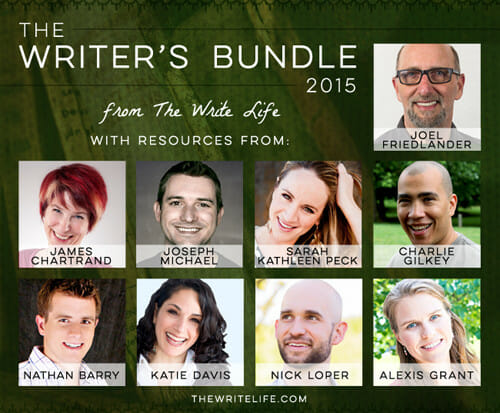
    Here’s what’s in The Writer’s Bundle:

    • Kindle Launch Plan: $1,400 in 30 Days & an Amazon Bestseller, from Nick Loper (Course; retails for $99)
    • Content Strategy for Thought Leaders, from Sarah Peck (Course; retails for $300)
    • Book Proposal & Manuscript Template, from Joel Friedlander (Tools and ebook; retails for $27)
    • Learn Scrivener Fast, from Joseph Michael (Course; retails for $197)
    • Video Idiot Boot Camp, from Katie Davis (Course; retails for $297)
    • The Momentum Kickstarter Kit, from Charlie Gilkey (Tools and ebooks; retails for $47)
    • Authority, from Nathan Barry (Ebook; retails for $39)
    • Write for the Web, from James Chartrand (Ebook; retails for $23)
    • Turn Your Side Hustle Into a Full-Time Business, from Alexis Grant (Ebook; retails for $47)

    Interested? Grab your bundle before it’s too late!

  • Write Every Day: How to Meet Your Daily Writing Goals

    Write Every Day: How to Meet Your Daily Writing Goals

    If you still have doubts about whether you should be writing every day, it’s time to kick them to the curb.

    Writer after established writer gives the same advice: to build your writing skills, you need to stretch them on a daily basis.

    Stephen King says you should write every day until you meet a predetermined word count. Of course, it doesn’t have to be 2,000 words, but you have to start somewhere.

    Author Bill O’Hanlon recommends starting by writing for 15 minutes a day. And this doesn’t mean spending 15 minutes staring at a blank screen or rewriting that first sentence for the 15th time. It means making a genuine effort to write, whether it’s starting the next chapter of your novel or simply freewriting.

    Whether you write to a particular word count goal or choose a time limit, you need to find a strategy that works for you. Just remember: it doesn’t matter which method you pick as long as you use it.

    Create a habit of writing every day

    While “just sit down and write” is common advice, creating a habit of writing every day can be challenging for different reasons. Some writers struggle to find time to write creatively between unpredictable schedules, full-time jobs or families.

    First, acknowledge your time or energy constraints — the size of your canvas, as James Clear calls it. Then, work within them to train yourself to write, using strategies like freewriting, creative rituals and eliminating all distractions.

    Make tomorrow’s first step simple

    Starting to write each day can be the hardest part, but you can set yourself up for success with a little preparation at the end of each day.

    One strategy is to stop writing mid-sentence at the end of every day. This way, the next day you won’t spend hours trying to figure out where to start; you simply finish that sentence and keep going.

    Take it a step further by copying that last sentence into a separate document at the end of each day. Spend some time writing out a few possible directions or a brief outline for tomorrow’s writing.

    The next day, work only from that new document. This way, you won’t be distracted by the possibility of editing yesterday’s work — you’ll be focused on creating today’s.

    Use technology to help you

    Blogger Buster Benson suggests writing 750 words each day. To help himself and others meet this goal, he built 750 Words.

    [bctt tweet=”Use technology to help you write daily. @Buster suggests writing 750 words each day. “]

    This simple tool provides a distraction-free writing environment and lets you know once you reach your daily goal. The writing you produce is totally private, and a subscription is $5 a month after a free 30-day trial.

    Sticking to a tighter budget? Try some of the many free apps and programs available to help your concentration and productivity.

    Try Seinfeld’s calendar system

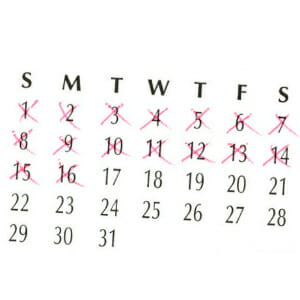
    Someone once asked Jerry Seinfeld for advice on becoming a great comedian. His reply was simple: buy a big wall calendar and hang it somewhere you’ll see it often.

    Every day you meet your writing goal, mark a big X in red marker over that day on the calendar.

    “After a few days you will have a chain. Just keep at it and the chain will grow longer every day. You’ll like seeing that chain, especially when you get a few weeks under your belt. Your only job is to not break the chain.”

    Easy, right? Just don’t break the chain.

    Use this technique to meet specific writing goals. For instance, if you’d like to write a ebook, track your writing specific to that project on your giant calendar — if it’s in addition other writing, just use another color of marker.

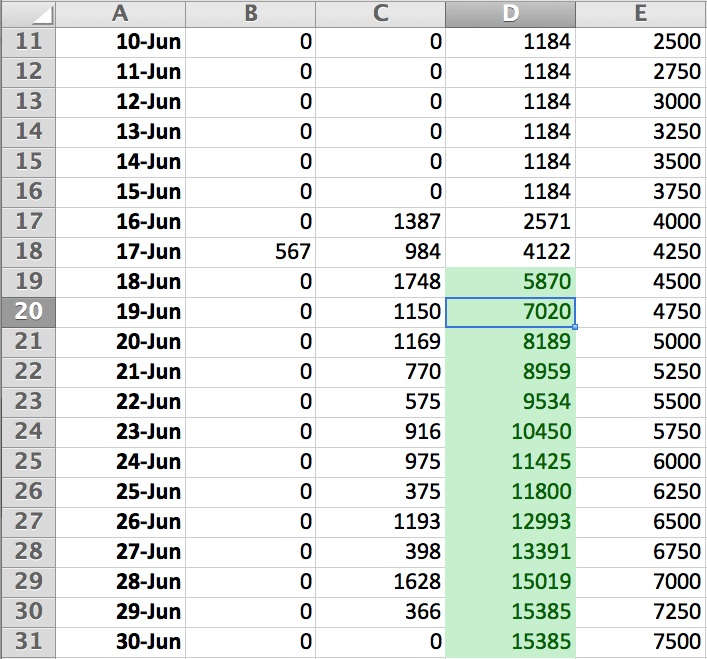
    Don’t have (or want to buy) a calendar? Writer Nora Bailey created an Excel spreadsheet formatted as calendar, with number of words written under specific days. When she meets her writing goal each day, the “total words” field automatically turns green.

    Image: Writing Calendar in Excel

    It’s deceptively simple to negotiate with yourself that you won’t be doing any writing today. You can say it’s late, you don’t feel like it or simply deny that you ever really wanted to start writing. The trick is in putting those excuses aside and putting pen to paper, fingers to keyboard.

    There’s no one strategy that helps all writers write every day. Experiment to find one that works well for you!

    Do you write every day? How do you make it a priority and maintain the habit?
    links
    no
    1

  • Self-Publishing Secrets: 5 Free Amazon Services That Will Help You Sell More Books

    Self-Publishing Secrets: 5 Free Amazon Services That Will Help You Sell More Books

    While nearly everyone has heard of Amazon, fewer people know about all of its free services that benefit independent authors. If you self-publish your work, make sure you’re aware of these programs and tools that can maximize your book’s impact.

    Selling through Amazon is common among independent authors. Amazon is the largest online book retailer, and people trust it: millions of buyers have their credit card and shipping information already saved on their accounts (hello, one-click-to-buy!).

    The downside of selling on Amazon is authors don’t get access to customer information (like name and email addresses) and the royalties are lower than selling directly through an author website using services such as Gumroad, Sellfy or PayPal.

    If you’re willing to give up the above for a potentially higher sales volume, then here are the five main services at your disposal, for free, to get your book onto Amazon.com as an ebook or paperback.

    KDP

    KDP (Kindle Direct Publishing) is a way for any indie author to sell their ebooks on Amazon.com (or other Amazon country websites). Authors get 35% or 70% royalties, depending on the ebook’s list price and where it’s sold.

    KDP uses the mobi digital format, which is different from most other digital retailers, which use ePub. Your ebook needs to be formatted specifically for their platform, but they accept and convert Doc, ePub, RTF and a few other formats. If you’d prefer to convert the file yourself, free apps like Calibre or Amazon’s KindleGen convert from Doc, HTML and ePub to mobi. Scrivener users can convert directly into mobi using the “Compile” function.

    Formatting your ebook perfectly can be a headache, but here’s a good resource.

    After uploading, use Kindle Previewer to see the final version of your ebook before it’s published, so you can go back, make changes and re-upload. For more advice and resources, check out this post or the massive KDP community forum.

    A lot of authors and readers aren’t aware that you don’t need a Kindle device to read a Kindle ebook. They work and read well on any tablet (like iPads) or smartphone with the Kindle app. My personal favourite way of reading ebooks is from any web browser on my computer, using Amazon’s Cloud Reader.

    KDP Select

    While authors can upload ebooks to KDP and still sell the same ebook anywhere else on the Internet, Amazon also offers KDP Select for authors who agree to 90 days of digital exclusivity. In return KDP Select pays higher royalties for sales in certain countries, adds your ebook to the lending library for Prime Members, and gives you promotional options to make your ebook free for up to five days or discounted for up to seven.

    The promotional options are the best reason to use KDP Select, and why I use it. When your ebook is free or discounted, it appears on sales pages on Amazon.com — which drives more people to buy it.

    Other websites also promote free or discounted Kindle ebooks to massive audiences; Bookbub is the largest, with over two million subscribers. While Bookbub and other larger promotion websites aren’t free, it can often be worth the price to put your book in front of a much larger audience. There are also lots of smaller, free Kindle discount promotion websites; here’s a good list.

    Most indie authors see huge sales days when their ebooks are discounted and massive download days when those ebooks are free. These results often lead to higher-than-usual sales on the days right after promotions (when it’s back to regular price), as well as a bigger audience for future ebooks.

    CreateSpace

    CreateSpace is Amazon’s print-on-demand service for indie authors. It lets you sell a paperback copy of your book either on CreateSpace.com website or directly from Amazon.com. All you have to do is upload and set the book; they’ll take care of printing and shipping. You don’t even pay  for your book to be printed — you simply collect a commission whenever it sells.

    You design a cover (or have CreateSpace design one for an extra fee) and upload your content in PDF format. Once it’s uploaded, you can download a “proof” copy, view it directly on the website, or even order a physical copy. That way, you can make any necessary changes before it’s published.

    CreateSpace also lets you link a digital or Kindle version of your book to the paperback, which allows purchasers to choose their format on the same sales page. It takes a bit of work to set this up, but it’s free and easier after you’ve done it once. I didn’t think print was worth it for years, but as soon as I started offering paperback copies of my ebooks through CreateSpace, I noticed that they made up 10% of my sales.

    Amazon Associates

    If you’re not familiar, Amazon Associates is a service that pays you for linking to products on Amazon.com. It uses a tracking ID in each URL to identify who directed the buyer to the site.

    Use this link when promoting your own books and make an extra four to eight percent on each sale – it’s not against the rules. That’s money Amazon would have kept otherwise! You also get commissions from anything someone buys on Amazon.com if they got there from your initial link.

    On average, I make a few hundred dollars each month from my affiliate account, because every time I link to my books from my website, newsletter or social media, I use Amazon Associates URLs.

    Amazon Author Central

    Even as an indie author, Amazon lets you create an author biography page that attaches to your ebook’s sales page. You can share your background, your blog’s RSS feed (so it grabs new posts), upcoming speaking or book-signing events, and even your latest tweets.

    Your Author Central page appears on every book sales page on Amazon, so it cross-links other books you’ve published. If someone clicks over to your author page, they can even subscribe to you and get emails when you release new books.

    Have you used any of these services as an independent author?

  • Your Last Chance: Grab The Writer’s Bundle Before Midnight

    Your Last Chance: Grab The Writer’s Bundle Before Midnight

    Haven’t yet downloaded The Writer’s Bundle?

    Today’s your last chance! At midnight EST tonight, The Writer’s Bundle disappears forever. Grab it now while you can!

    Get your hands on these incredible resources from well-known writers like Chris Guillebeau, Jenny Blake, Jeff Goins and Sophie Lizard today for only $79. If you bought them each separately, it would cost you well over $700!

    Every resource – all nine of the ebooks and courses – is dedicated to helping you improve your writing skills, publish your work and grow your writing business.

    What are you waiting for?

    Image: Download now

  • You Won’t Believe What We’re Offering Writers Today

    You Won’t Believe What We’re Offering Writers Today

    We are SO excited to finally announce a project we’ve been working on for months: The Writer’s Bundle.

    Have you ever seen those amazing bundles where you can get a handful of valuable resources at a low price?

    Ever wish someone would put together a fabulous bundle deal specifically for writers?

    We’ve done it! We’ve bundled nine ebooks and courses — many of which you’ve likely heard about and wished you could afford — that together retail for more than $700. Resources from popular writers who are truly living the life many of us crave, bloggers like Chris Guillebeau, Jeff Goins, Jenny Blake, Tom Ewer, Danny Iny and more.

    These ebooks and courses cover topics every writer needs to understand to make a living in this industry, including freelancing, publishing, blogging and more.

    The best part? We’re making this bundle available for just $79, an incredible deal.

    The catch? It’s available for three days ONLY; the offer expires Wednesday, March 19 at midnight EST. That means if you’re interested, you’ve gotta act now!

    Click here for more details!

    Image: The Writer's Bundle Contributors

    Here’s what you’ll get:

    • Chris Guillebeau’s Unconventional Guide to Publishing (ebook and audio, retails for $129)
    • Jeff Goins’ How to Start Publishing for Kindle (ebook and audio, retails for $47)
    • Kristi Hines’ The Ultimate Blog Post Promotion Course (course, retails for $197)
    • Jenny Blake’s Build Your Business (course, retails for $75)
    • Tom Ewer’s Paid to Blog (course, retails for $29)
    • Sophie Lizard’s The Freelance Blogger’s Client Hunting Masterclass (course, retails for $98)
    • Alexis Grant’s Social Media for Writers (course, retails for $99)
    • Danny Iny’s Interview on Building an Engaged Community (audio + transcript, exclusive)
    • Ali Luke’s The Blogger’s Guide to Irresistible Ebooks, plus Publishing an Ebook Audio Seminar (ebook and audio, retails for $29 + $19.99)

    What are you waiting for? Go grab your bundle!