Tag: tools

  • How Fast Can You Read? New App Makes Speed-Reading Easier

    How Fast Can You Read? New App Makes Speed-Reading Easier

    Ever wished you could read faster? While you may not want to rush through your favorite novel, most of us would be happy to speed-read the morning news or breeze through an explanation that helps us learn a new skill.

    Spritz, a new app from a Boston-based startup of the same name, is “reimagining reading” by making it possible to read up to 1,000 words per minute (wpm), when the average adult reads about 300 wpm.

    How the heck does Spritz work?

    Spritz makes reading easier by focusing on the “Optimal Recognition Point” (ORP), or the part of the word you look at while your brain processes the meaning of the group of letters.

    Moving your eyes from word to word to find the next ORP accounts for about 80 percent of the time it takes to read conventionally-written words. To cut down on this wasted time, Spritz presents each word exactly where your brain wants it to be: in the same space on the screen and lined up by ORP.

    The result? Your eye doesn’t have to search for the next ORP. And that means your brain can process content more efficiently — to, for example, whip through that longform article in a fraction of the time — which is the big appeal of this technology.

    Image: ORP alignment in Spritz and a traditional speed-reading technique
    A comparison of ORP alignment in Spritz and Rapid Serial Visual Presentation (RSVP), a common speed-reading technique.

    Spritz is also ideal for smartphone and other small screens. Since the human eye can focus on about 13 characters at a time, Spritz only shows 13 or fewer characters at once.

    To give Spritz a try, head to the app’s homepage. Choose your language and speed, then click the white display for a demonstration. Elite Daily also includes a helpful demonstration in their article about Spritz.

    What do you think of this idea? Would you use an app like this to read faster?

  • 5 Voice Tools That Will Help You Write Better — Without a Keyboard

    5 Voice Tools That Will Help You Write Better — Without a Keyboard

    Writers are constantly looking for the best software to manage their creations.

    People experiment and switch off between writing tools that add more features and some that declutter the workspace to promote creativity.

    However, while the average person types at 50 to 80 words per minute, that same person produces 110 to 150 words per minute when speaking. Why not consider a writing tool that keeps your hands off the keyboard and puts your voice to work? (Click to tweet this idea.)

    Let’s explore five tools that let you manage your ideas and write full articles and stories without even touching a keyboard.

    Windows Speech Recognition

    Ideas can pop into your head at any time, whether you’re doing the laundry or eating lunch. Take advantage of them!

    Start writing at a faster rate, with more freedom to move around and complete other tasks by using Windows Speech Recognition software. This  software is surprisingly accurate and it picks up on your own personal speaking subtleties. Newer Windows computers come with the Windows Speech Recognition software included.

    Dragon Speech Recognition

    Dragon Speech Recognition is the top speech recognition option for Mac users. It’s not free like Windows Speech Recognition, but it blows any other dictation software out of the water. Narrate your book into the microphone and watch it magically appear on screen. A PC version is also available.

    Evernote

    It’s no secret that writers find inspiration in different locations. A handy notebook or camera works wonders for writers on the move.

    However, these pieces of inspiration take a little more work to transfer into actual writing. Pictures and drawings are not words, so they need to be efficiently transferred into words. Log all your photos and sketches in Evernote and spend a period of time every week describing them. You could easily place one of these descriptions in a story or article.

    In addition, Evernote offers a speech-to-text feature, which comes in handy when you’re on the move and need to jot down an idea, talk out a chapter, or run through lines of dialogue.

    Download the application and include the widget on your homescreen to get a one-click capture of your thoughts. Go back to your computer later and export this piece of material to the word processor of your choice.

    OmniPage

    Optical character recognition is a form of software that scans hardcopy documents and converts them into editable documents for Microsoft Word and other processors. You may not be able to write a novel with OmniPage or other OCR software, but how many times have you held a hard copy document with no way to digitize it?

    Cut out magazine articles and paste quotes or segments directly into your computer. Maybe you wrote a story back in the day and the only copy you have is the one folded into a time capsule. Dust off that story and convert it into a document for editing.

    Livescribe

    Livescribe is about as state-of-the-art as any writer can get right now. The Livescribe 3 pen allows you to jot down notes with a real pen that transmits ink to the page while still capturing a digital version of the text on your iPad or iPhone. You can then convert your notes into editable text to plug right into your article or story.

    In essence you get four versions of your notes in one swoop: written on the notepad, written on the application, converted to type and you can also record your voice while writing for quick reference. The only problem with Livescribe? It doesn’t work on Androids yet.

    The world is filled with places and opportunities that offer inspiration and motivation. Cut down on the process of transferring handwritten notes to your computer. Write faster and multitask by moving beyond the keyboard.

    Are there any other ways to write more efficiently than with a keyboard?

  • 6 Reasons a New Writing Tool Called Draft Is Revolutionizing Author Collaboration

    6 Reasons a New Writing Tool Called Draft Is Revolutionizing Author Collaboration

    As writers, we frequently work with editors, clients, and other writers. But as much as we collaborate, there aren’t many tools to help us do it well.

    Everyone can relate to the frustrations of using Microsoft Word’s Track Changes function or the challenge of emailing documents back and forth.

    Clunky collaboration workflows turn working with others into a frustrating experience.

    But every day, new tools are coming out to help writers work better. Nathan Kontny’s Draft is one such tool. Here are six reasons to give Draft a try on your next collaboration:

    1. No additional software

    Have you ever tried to help a client set up a new piece of software just so they can work with you? Working with clients can be challenging enough without extra hassles.

    Draft is an online editor, meaning it runs in any browser. You don’t need to download or install any additional software to use it, and neither does anyone you’re collaborating with. Plus, it’ll work on any operating system, so there’s no worry about Mac or PC interoperability.

    When you invite someone to edit your document they’ll receive an email with a link. All they have to do is follow that link and create a Draft account. The only necessary software is a browser.

    2. Minimal writing environment

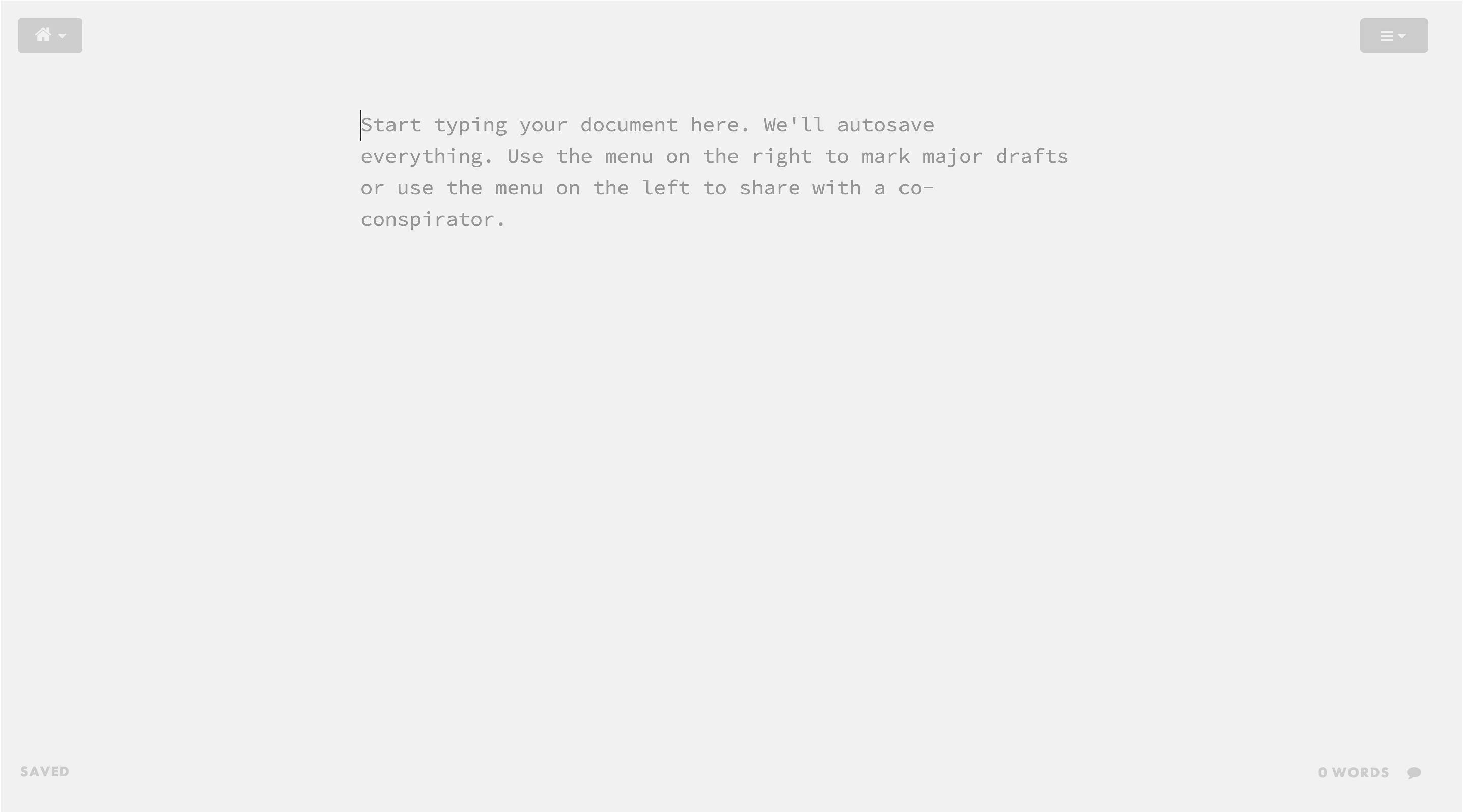
    Draft employs what is typically called a “distraction-free” writing environment. The interface isn’t littered with menus and toolbars. The content is front and center.

    This simple and minimal interface lets you focus on composition instead of formatting. And your clients or editors won’t need to learn a bunch of menus or settings.
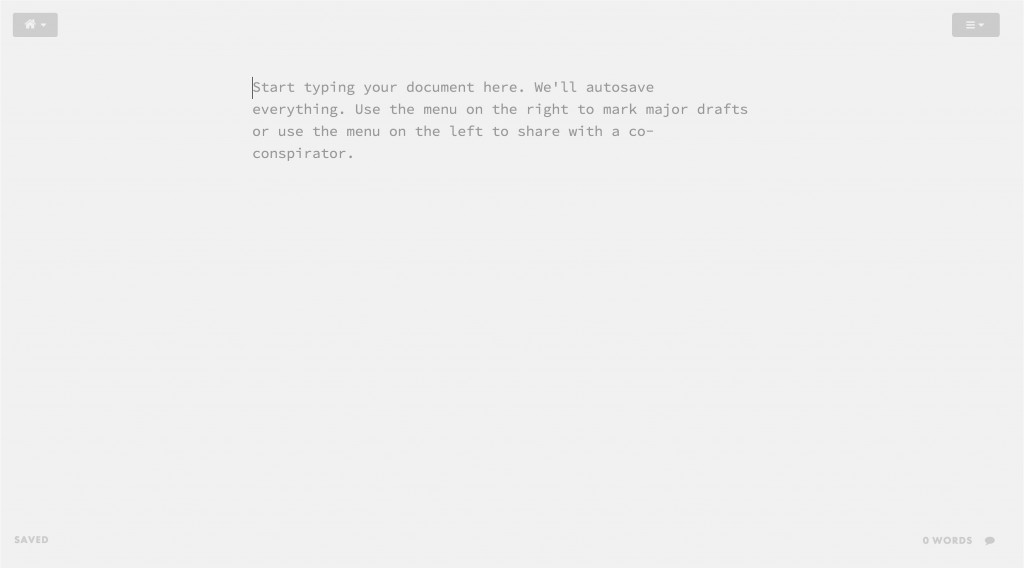
    Draft interface

    When you do need to format, Draft supports Markdown and its top-right menu will let you make text bold, italicize, and insert images and links.

    3. Import from anywhere

    Despite its pleasant writing environment, you may not actually want to compose in Draft. That’s no problem. Draft will let you import from Word, Google Docs, Dropbox and even Evernote, so you’re free to keep using your existing writing tools.

    Your edits in Draft will automatically be synced with their cloud counterparts. For example, you can compose in a text editor on your iPad, save the file in Dropbox, then edit the document in Draft from your computer.

    When you’re done editing, Draft will automatically update the Dropbox file, keeping all versions current. (This feature doesn’t work with Google Doc and Word file types currently, which is yet another great reason to quit Word and use a plain text editor.)

    4. Version control

    You know the old routine of keeping multiple Word files for separate versions of your document? The one where you end up with file names like Wills_The_Write_Life_Post_v2_Heathers_edit_FINAL.doc?

    Forget that hassle. Not only does Draft automatically save as you write, but it lets you mark major revisions: all you have to do is hit CTRL+S (or CMD+S on a Mac) and a separate copy of your document is saved. And when you’re working with a collaborator, their edits are version controlled too.

    All of your major revisions are browseable, so you can always go back and see your content as it was at different stages. Unlike Google Docs and Word’s Track Changes, version browsing isn’t just a list of changes: it’s a scrollable, side-by-side view of every revision, making it much easier to grasp the differences between versions.

    5. Edit approval

    When you share your document with someone, they’re free to make whatever edits they want. Editors can also highlight bits of your text and leave comments on them. But don’t worry, nothing they do will overwrite your content.

    Once your collaborator is done editing, they can submit their changes. You’ll receive an email notifying you and from there you can approve or reject the edits.

    The approval system really sets Draft apart from similar collaborative software such as Google Docs. Instead of the most recent edits automatically replacing the current document, Draft changes nothing until you — the original author — give the “okay.”
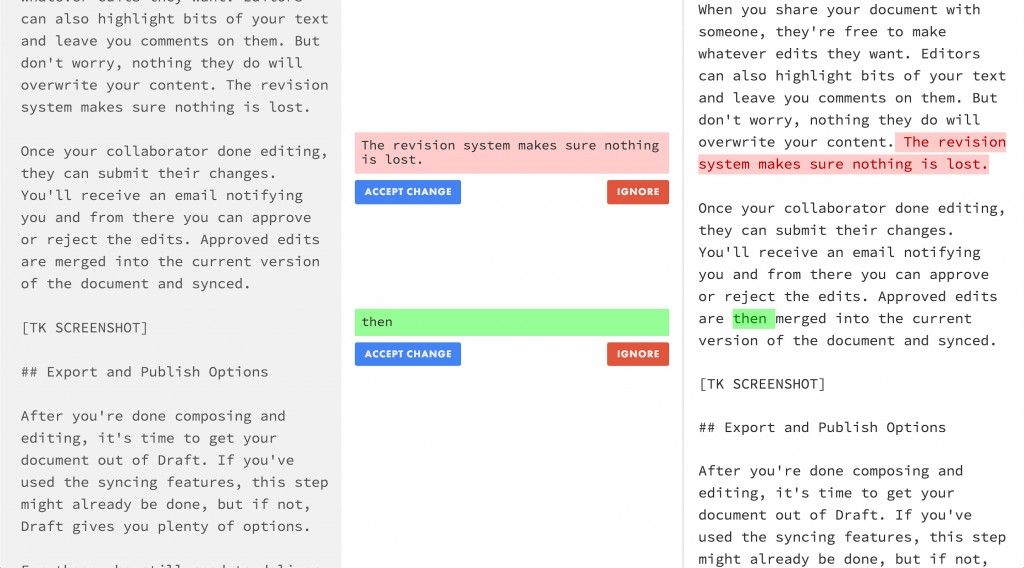
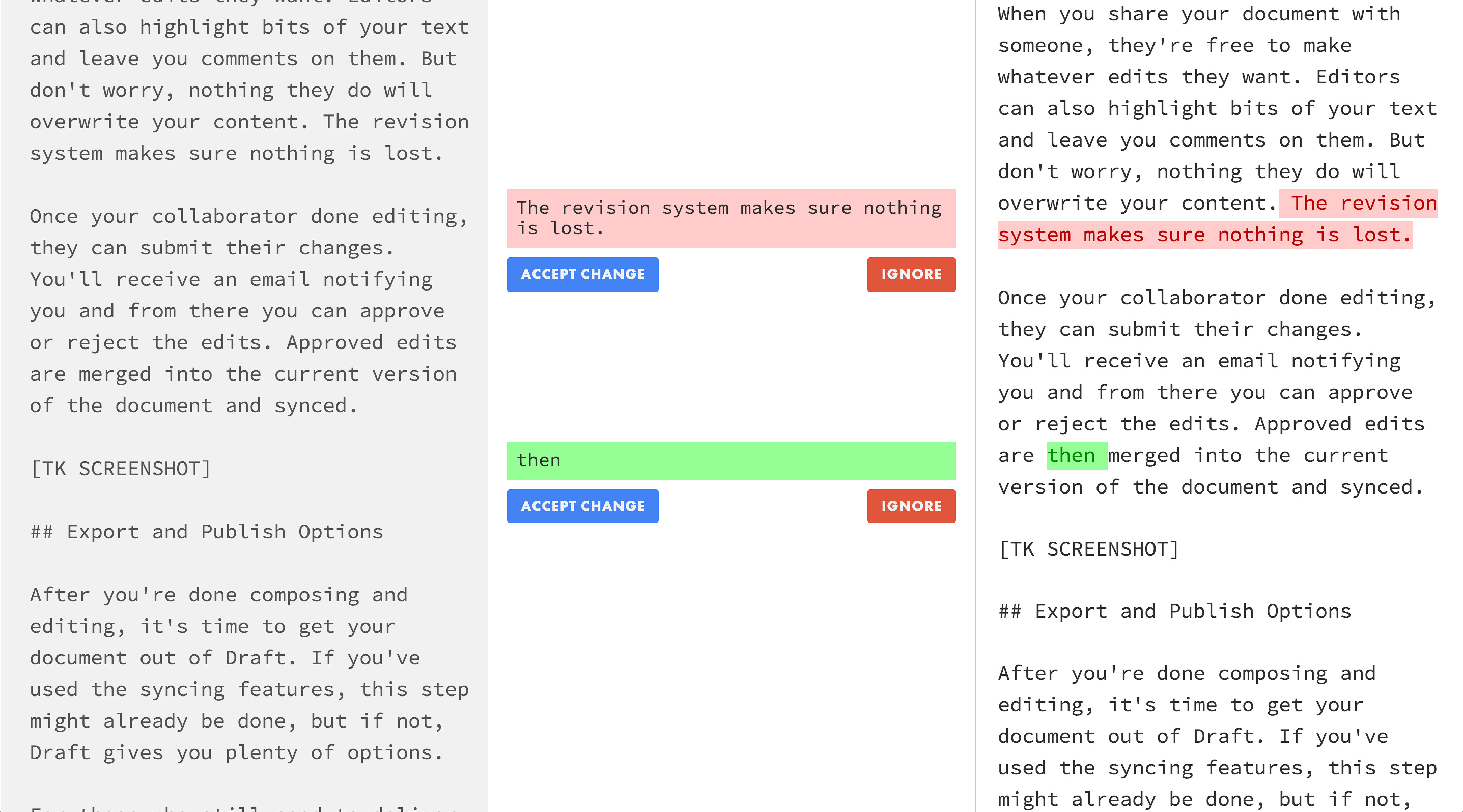
    Draft Edit Approval

    The edit approval screen shows you the original content on the left and the new, edited document on the right. As you scroll through the text you are able to approve or reject every change made by your collaborator.

    6. Export and publish options

    After you’re done composing and editing, it’s time to get your document out of Draft. If you’ve used the syncing features, this step might already be done, but if not, Draft gives you plenty of options.

    For those who need to deliver Word files, you can download or email your document as a .docx. You can also save it to Google Docs or export it to plain text. In addition, Draft will give you an HTML preview of your work, including Markdown conversion, which is great for bloggers. Draft can also export to Kindle format, so you can download or email an ebook version of your document.

    But you can go one step further: instead of just exporting from Draft, you can publish directly to major platforms. Draft supports publishing to WordPress, Tumblr, Blogger, Twitter, and more. It’ll even let you publish to MailChimp, so you can use it for your email newsletters.

    These features make Draft a great tool for collaborating, but they just scratch the surface of what it can do. Check out the Draft Features page and Nathan Kontny’s blog to learn more about this amazing tool.

    What do you think of this new collaborative tool? If you’ve used Draft, please share your experience! 

  • Writing Tools You’ll Like Far Better Than Microsoft Word

    Writing Tools You’ll Like Far Better Than Microsoft Word

    GIVEAWAY: Will is generously giving away a Kindle copy of his latest ebook, Writing for the Web, to the person who leaves his favourite comment. Bonus points if you make him laugh! Comment within one week to enter. Good luck! (Update: Martina won!)

    Many writers struggle with MSW addiction. They tell themselves they’re not addicted. They tell themselves they need MSW. They tell themselves they can quit whenever they want.

    But they can’t. No matter how much they hate it, no matter how much they wish they could stop, no matter how much it affects their professional and personal lives, they keep using MSW.

    I, for one, will no longer enable the use of Microsoft Word.

    I know all the excuses.

    “I’ve been using it forever.”

    “I have to use it. It‘s the only way to get my work done.”

    “I just need it for one more project. After that, I quit.”

    Does any of these excuses sound familiar? Well, I’m here to tell you there’s a way out.

    No more fighting with frustrating and convoluted menu systems. No more deciphering mysterious formatting and layout quirks. No more emailing Word files to your friends and colleagues with your fingers crossed, hoping your document appears correctly.

    Word processing beyond Word

    To start, you might try another, better word processor. Apple’s Pages and Google Docs are the heavy hitters and Scrivener is a long-time writer favorite. There are also new entrants, such as Quip, who hope to modernize word processing. Each of these programs is superior to Word, but you can go even further.

    Be bold: quit word processing altogether. Or at the very least, quit using word processors for composition.

    You see, word processors, especially ones like Microsoft Word, aren’t actually good tools for composition.

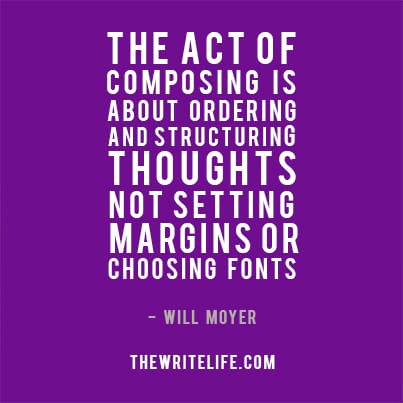
    The act of composing is about ordering and structuring thoughts. It’s not about setting your margins or choosing fonts or italicizing phrases. But word processors are notoriously bad at letting you just compose.

    MS Word Just Say No

    Word processors conflate composition with typesetting. Making stylistic decisions about your work is a separate mental process from penning your thoughts. When writing software forces you to deal with presentational elements, it only distracts from composition. Even if you try to ignore the stylistic decisions, Word will be typesetting your text anyway. And you’re still stuck looking at a bloated interface built for formatting, not composing.

    So during your composition process, skip the apps that want you to make stylistic decisions. Instead, use a plain text editor.

    Editing in plain text

    Plain text editors let you compose in plain, unformatted text. Notepad for Windows and TextEdit for Mac OS X are the standards, but they’re nothing compared to more robust editors. There are fantastic plain text apps that provide a heavenly writing environment, especially compared to the hell of Microsoft Word.

    Here are a few options to get you started:

    • iA Writer and Byword are beloved by Mac users. They also have iOS counterparts, so you can use them on your iPhone and iPad.
    • WriteMonkey and Q10 are Windows-only options. They’ve been around for years and have been battle-tested by many a writer.
    • OmmWriter and Texts are both cross-platform editors, meaning they work on both PCs and Macs. If you use multiple machines with different operating systems, these programs are a great way to maintain a similar writing environment on each device.

    Try composing in several different programs to help you get a feel for which one you prefer. I guarantee they’ll all be a more pleasant experience than your word processor. And if you absolutely have to, you can always turn to a word processor later in your workflow, when you need to format or print a document. (Although, I suspect that if most of your writing is intended for the web, you’ll have little use for it at all.)

    Remember, friends don’t let friends use Microsoft Word. (Like this idea? Click to tweet it.)

    How do you feel about Microsoft Word? Do you have a favorite program for composition?

    Don’t forget to comment so you’re in the running for Will’s ebook giveaway! You could win a free Kindle copy of his latest ebook, Writing for the Web(Update: Martina won!)