Editor’s Note: Since this post was originally published back in 2015, FreshBooks has rolled out newer versions. This post has been updated in 2024 to reflect perks, tips and tricks available for the latest FreshBooks platform — which is what you’ll get if you sign up for a free trial today.
If you were paid for every hour you spend working on your freelance writing business, you’d be rich.
But when you work for yourself, there’s a lot you need to do to keep your business running smoothly. Administrative tasks like invoicing, keeping track of payments, client management and bookkeeping can eat up loads of time — and you’re not paid to do them.
The more efficiently you can manage these tasks, the more time you can spend on paid work. And if you can automate a few things, even better.
Enter FreshBooks, the freelance writer’s time-saving and money-saving dream.
You may already be familiar with this online invoicing software that makes it easy to send invoices and receive payments. But did you know FreshBooks can also save you a boatload in invoicing fees? And that it can help you stay on top of your business expenses? Or that there’s a time-tracking feature?
Read on to learn how you can use FreshBooks to more efficiently manage your business and free up time to focus on paid freelance writing work.
1. Track your time
Whether you have clients on retainer, are paid a flat rate per project or bill hourly, it’s always a good idea to keep track of how much time you spend on each client.
Why? Because you could be logging more time than you thought. And when you know exactly how long you need to complete a particular task, you can better evaluate the projects you take on and rates you charge.
For example, you may think you need two hours to write a blog post, but by tracking your time you discover it takes three. Say you’re being paid $50 for the post. That means you’re making $16.66 an hour, not the $25 you thought — a big difference.
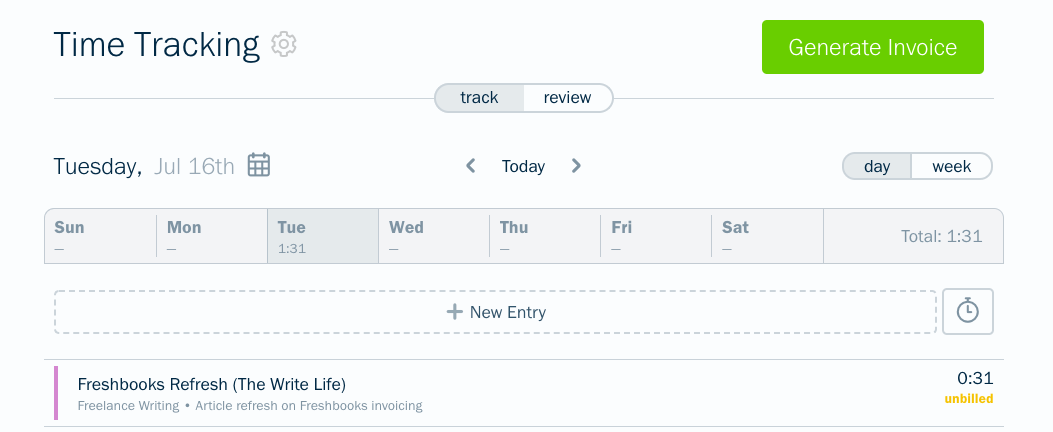
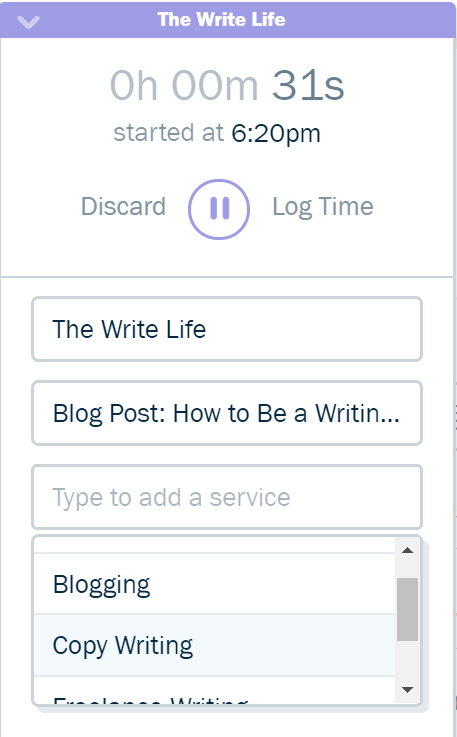
Tracking your time when you need to be doing actual work may seem like a drag, but the FreshBooks app for iPhone, iPad and Android makes it super easy. Just select your client and project, then start the timer — or pause it when you need a break — and you’ll be well on your way to time tracking bliss.
FreshBooks is also compatible with several desktop widgets such as ChronoMate for Mac OS-X and Toggl, so you can track your time even when you’re offline.
FreshBooks also makes it easy to note which of your services you’re using for any given project. For instance, perhaps you’re a freelance writer who offers blogging, copywriting, and SEO services. Noting which of these skills you’re utilizing on each timer you set can help you discover which of your services is most lucrative — and thus, which aspects of your business to invest more time and energy into.
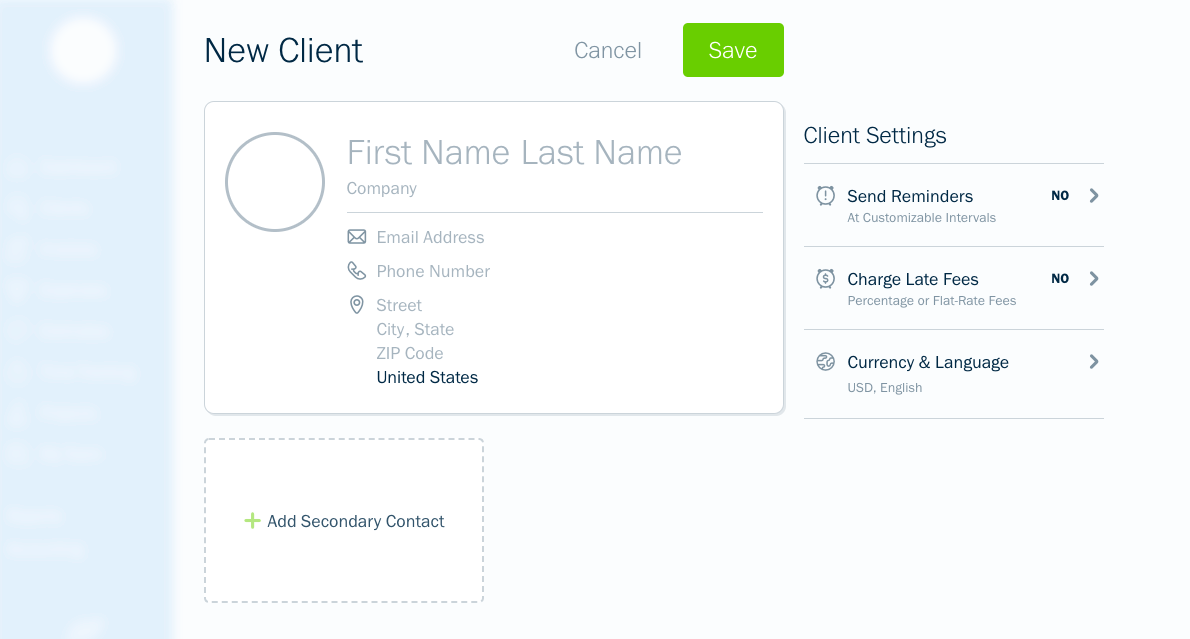
Pro tip: To set your freelance writing rates, it’s helpful to know exactly how much time you spend on every single aspect of your business. To get a handle on how much time you spend doing stuff that doesn’t bring in cash, create a new client: yourself. Then track any time you spend on marketing, business development or administrative tasks.
Having a full 360-degree view of where your time goes could be eye-opening. You may realize it’s time to raise your rates because you need to account for that unpaid time you’re dedicating to your business each week. (Need a little more encouragement? Check out FreshBooks’ ebook on how to charge what you’re really worth.)
2. Increase your chances of timely payment
Every freelance writer fears the unpaid invoice. To help avoid this uncomfortable situation, each invoice should remind clients of the payment terms you agreed to in your contract. (If you don’t have a freelance writing contract, it’s a good idea to start using one.)
FreshBooks has done the heavy lifting here and analyzed what language for payment terms works best. They found that being polite, telling clients exactly how many days they have to pay and adding interest for late payments increase the likelihood that you’ll be paid on time.
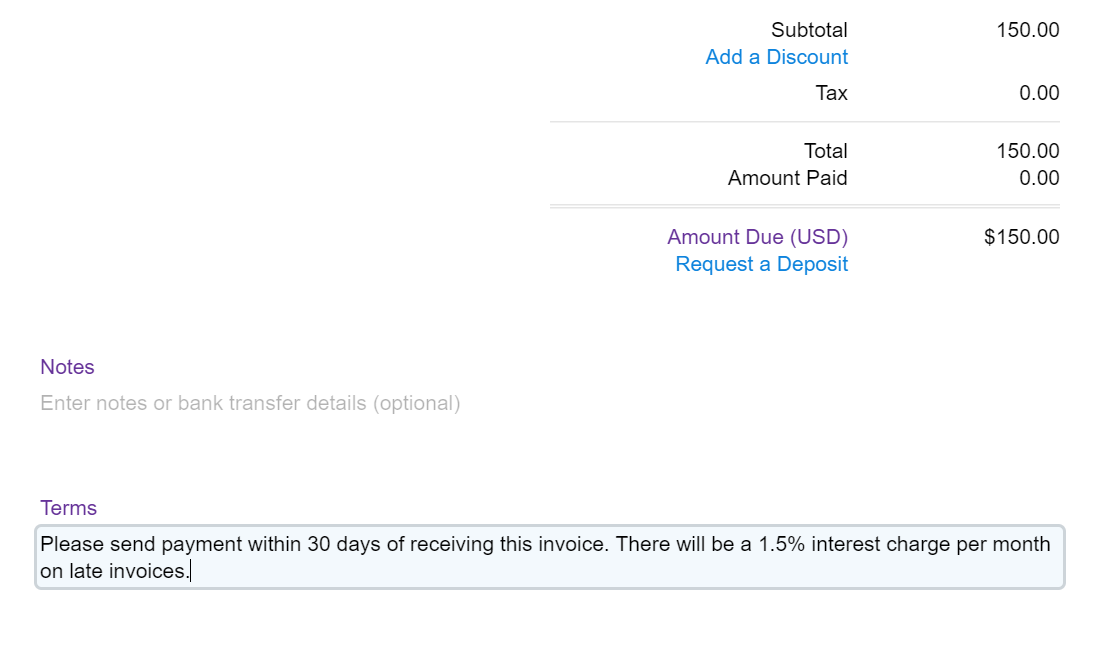
Pro tip: You may not have the same payment terms for all clients. You can edit the default language on each invoice to ensure the terms you and a particular client have agreed upon are correct.
3. Manage your incoming payments
“I love keeping tabs on all my clients to make sure they pay on time,” said no freelance writer ever.
When you’ve got handful of invoices out for payment, it can be hard to keep track of when each payment are due — and which clients may have missed their deadlines to pay.
With FreshBooks, it’s easy to keep track of who owes how much and when they owe it — all you have to do is click on “Accounts Aging” at the bottom of your home screen to generate a full report.
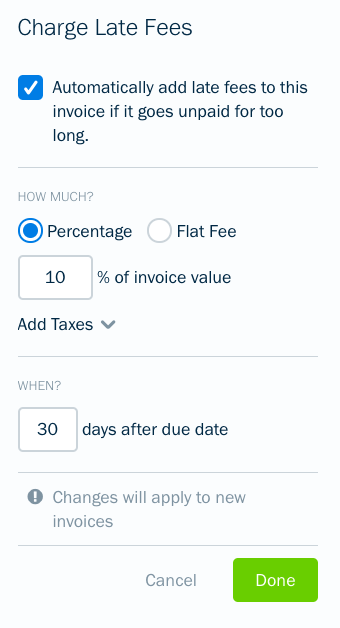
Pro tip: You can set up your FreshBooks account to automatically send a reminder to clients who have missed their payment deadline. Set up a late payment notification, personalize your message and clients will receive a gentle nudge if they accidentally forget to pay.
4. Calculate expenses and tax deductions
Come tax time, you better believe you can deduct every $5.50 almond milk latte (well, technically half of each one) you sipped while doing client work from your favorite coffee shop. Use FreshBooks to track your business expenses throughout the year and even add photos of receipts in case the IRS wants them later.
While you’ll have to be diligent about logging and categorizing each expense throughout the year, this will come in handy when you need it most. FreshBooks will calculate the exact amount you’ve spent in each category, making it a breeze to fill out those pesky tax forms.
Pro tip: Do you need to submit expenses to a client? No problem: FreshBooks makes it simple to mark an expense as billable, so you can invoice it to your client down the line.
5. Professionalize and personalize your invoices
There are a few other small things you can to to customize your invoices and show off to clients how amazingly organized, professional and lovely to work with you are.
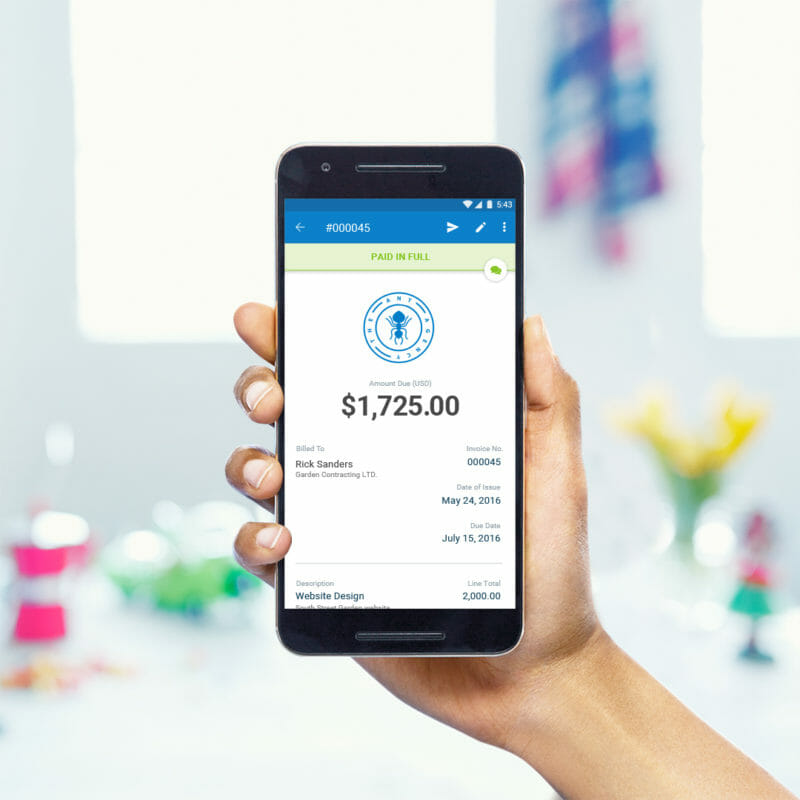
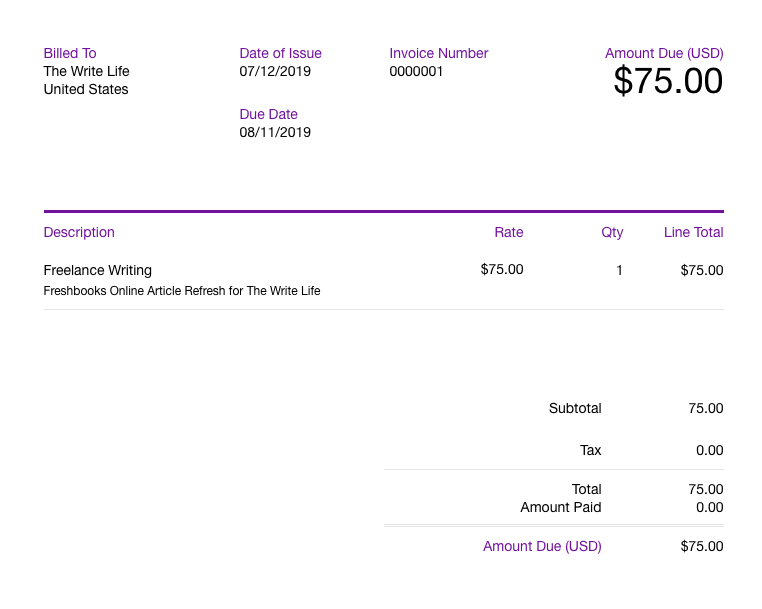
If you’d like your invoices to look a bit more professional, simply drag and drop to add your logo. You can even choose from a variety of preloaded templates, colors and fonts to give your invoices some pizzazz.
Use the notes section to start building a good relationship with a new client. A short-and-sweet thank-you note never hurts. In fact, FreshBooks claims that including a polite “please” and “thank you” increases the chances of your invoice being paid.
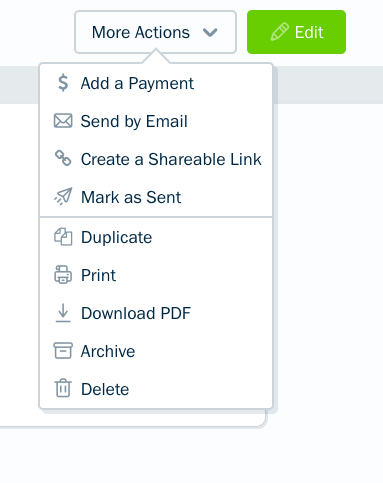
Have a client who communicates some other way than email? You can choose to export your invoice as a sharable link instead of sending it through the FreshBooks client, which allows you to send it whichever way your client prefers — which might help you get paid in a more timely fashion if you work for someone who doesn’t strive for Inbox Zero.
6. Pitches, proposals and pricing
Customisable proposals and pitches give your clients all the details, supported by images and attachments. Scope it out, outline their needs and how you meet them, the click send and win that business.
With in-app commenting, online approval and eSignatures, Proposals help your clients take action. Align timelines and easily convert Proposals to Invoices to save time billing.
In progress, viewed, or accepted. You always know the status of a Proposal. Client questions? Respond right in FreshBooks. Need an old Proposal? Track them all in Client Profiles.
Want to learn more? Try FreshBooks free for 30 days or get 50% off for the first 3 months!
Do you use FreshBooks to manage your invoices and expenses? Did we miss any of your favorite hacks or strategies?
This post contains affiliate links. That means if you sign up for FreshBooks through our links, you’re supporting The Write Life — and we thank you for that!
links