Tag: apps

  • 25+ Productivity Apps That Help Freelancers Get Way More Done

    25+ Productivity Apps That Help Freelancers Get Way More Done

    When you’re a freelancer, you are every department of your business—sales, A/R, administration, IT. Not to mention, you know, the actual writing part.

    Your time is valuable, so spending time on unnecessary tasks (or doing necessary tasks in an inefficient manner) is not good for business, literally. Which is why we’ve compiled this list of apps that will help you cut back on wasted time, boost productivity and get on to the high-value work that really makes your business hum.

    So whatever your need, there is — as they say — an app for that. Here are some of our favorites. Different apps work best for different people, be sure to play around with whichever sound interesting! Some even offer a free trial so you can try them on for size.

    Time tracking

    Whether it’s keeping track of how long you’ve worked on a project or learning just how much time you’re wasting doing other things (so you can swiftly cut them out), these apps have your back.

    1. Klok

    Klok is a simple work timer at its core, but with a clever twist: it displays your work as it fills you day, as if you added in everything you actually did to Google Calendar afterwards. It can be connected to other popular productivity apps like FreshBooks and Basecamp, making it useful for team collaborations as well as solo writers. There is a limited free version, and paid licenses start at $19.99.

    2. RescueTime

    RescueTime is an invaluable (and frankly terrifying) tool, whether you’re a writer or not. It breaks down your screen time into categories and shows you exactly what percentage of those hours are spent productively, and which are spent on, you know, Netflix. RescueTime is a great way to get an overall sense of how you’re actually directing your energy, giving you both daily and weekly reports to keep you accountable. But like we said, you probably won’t always like what you see… so be prepared for that!

    3. Tick

    Tick is unique in that it allows you to access your time-tracking tools from any device, anywhere. (After all, not every aspect of your business takes place in front of your laptop. Sometimes, it’s a client meeting over coffee. Still counts!) After your 30-day free trial, you can opt into a membership starting at $19 per month. The tiers increase from there based on your desired number of projects.

    4. Toggl

    Toggl is a simple, but powerful, time-tracker, allowing you to break down your hours by project, client, and task to see exactly where they’re all going (and where they maybe should be going instead). The basic plan is — score! — free forever, but there are also paid tiers to explore, starting at an affordable $18 per year.

    Taking notes and organizing your thoughts

    Keep your brilliant gems at your fingertips and easily findable by letting these apps take the complexity out of capturing all those fleeting inspirations.

    5. Evernote

    Evernote, the self-described “best note taking app” on the market, may just be offering truth in advertising. It comes with a host of inventive features including the ability to turn voice memos into notes or to clip and tag interesting things you find on websites, as well as creating to-do lists and sharing with other users. Your notes will be accessible from any device, no matter the OS and no matter where you are. Premium and business versions are available, but the basic service is totally free, and still powerful.

    6. Google Keep

    Google Keep works similarly to Evernote, and comes installed stock on many Android and Google-based devices. You can use it as a mobile app to quickly capture those amazing one-liners, and then open the app on the desktop to more easily put them to use. It also offers a simple but powerful labeling system to help you keep your thoughts organized, as well as reminders and check-off-able lists for those times when you just need to remember to pick up some milk on the way home.

    7. MS OneNote

    MS OneNote allows you to take personal notes as well as to easily collaborate with others, and you aren’t just limited to typing out your thoughts. You can use a stylus or your finger to draw or annotate existing content, or include audio notes, online videos, and other kinds of media. OneNote comes as part of an Office 365 subscription, which starts at $69.99 per year and also includes Word, Excel, PowerPoint, and so many other classic Microsoft services.

    8. MindManager

    MindManager by Mindjet is perfect for those writers who quake at the very thought of creating outlines. Instead of staring down the scary blinking cursor, you’ll create a “mind map” — a non-linear, stream-of-consciousness diagram that might just help you see what you’re actually getting at. From there, it’s easy to sync the information with MS Word, or to pop it into an Outlook email. You don’t have to enter your credit card information to take part in the 30-day free trial, but a perpetual license will cost you between $99 and $349 depending on your operating system.

    9. Simplenote

    Simplenote is just that: simple. It’s a free service that allows you to take and sync notes on iOS, MacOS, Android, Windows and even Linux, and it even creates backups of past versions of notes you edit — which can help put writers at ease when it’s time to kill their darlings!

    Conquering your to-do lists

    Categorize, prioritize, sort and ultimately cross off your tasks with these apps.

    10. Get It Done

    Get It Done allows you to sync your to-do list between your mobile device and your web browser, which is perfect for when you remember something you meant to do the moment you close your laptop and head out the door. It also allows you to delegate tasks to team members and colleagues, as well as organizing related tasks into projects.

    11. HiTask

    HiTask is free for up to five users, and is a great simplistic to-do app — but the real power move is upgrading to the $5/month business tier, which allows you to sync your list in real time with Google Calendar or outlook. (It’ll also grant you unlimited storage.)

    12. MS To-Do

    MS To-Do is a great option for those who keep most of their work documents organized in MS Office. It’s easy to sync up with the other MS products you use on a daily basis, and it’s available to anyone with a Microsoft Account — which means you don’t even have to purchase a subscription to use it.

    13. Remember the Milk

    Remember the Milk is a to-do app that will work for your business must-do lists as well as personal ones. The basic service is free, but with the $39.99/year Pro level, you can break down individual tasks into subtasks. For instance, “write essay” might house, under its umbrella, “write outline,” “draft thesis,” “flesh out paragraphs,” etc, which may help make even overwhelming projects seem doable. (Which they totally are. You’ve got this!)

    14. Teuxdeux

    Teuxdeux describes itself as “simple” and “shiny,” so if you’re looking for a great-looking to do app that will help you, well, write to-do lists, this might be the one for you. (It can also help you set recurring tasks and custom lists, and you’ll be able to download your to-dos whenever you want to.) After your 30-day free trial, you’ll be upgraded to either the “skeptic” subscription ($3 per month) or become a “believer” ($24 per year).

    15. Todoist

    Todoist also starts out as a free service and functions similarly to the others in this list. But the $3/month Premium tier unlocks automatic reminders and customizable project templates, and there’s also a business level for company-wide team collaborations.

    16. Toodledo

    Toddledo is another free to-do list option that syncs across devices and makes it simple to share and export your to-do data. It’s available for both Apple and Android as well as being useable from a desktop browser.

    Managing team projects

    These apps help collaborate in a way that’s quick, intuitive and a lot easier than playing never-ending email tag.

    17. Asana

    Asana help you and your team not just get organized, but also stay on track. Its timeline feature makes it simple to see where projects stand at a glance, so you can more easily get ahead of those pesky deadlines. The basic tier is free, but to unlock the tool’s full potential, you’ll want to upgrade; subscriptions start at $9.99 per month per user, with a minimum charge of $11.99 monthly.

    18. Basecamp

    Basecamp is a whimsical team-managing tool, making it easy to break down projects by task, assign tasks to specific team members, and also to pow-wow around the digital campfire. Each assignment offers a functional discussion board, and it’s easy to ping other users. You can also add and organize related documents and necessary media, too! Pricing is a flat $99/month, no matter how big or small your team is, which may make it a little top-endish for freelancers — but if you’re working with a large client on a regular basis, they may enroll you in their existing Basecamp subscription free of charge!

    19. Flow

    Flow is a sleek, beautiful way to see all of your team’s projects in one place. It allows you to customize your workflow to suit your needs, including the ability to set priorities and track projects from start to finish. The basic tier starts at $5.95 per month per user, but the souped-up $11.95 version really unlocks the tool’s workflow-organization potential.

    20. Slack

    Slack is less about project management, per se, than it is about team communication, but it’s become such a darling of remote work teams that we had to include it on this list. It’s kind of like those old AOL chatrooms we all frequented in the late 90s, but with 21st-century additions like hashtags, integrated GIFs, and easily user pinging. Oh, and you’re supposed to be talking about work, not roleplaying wolves or whatever.

    21. Trello

    Trello is a flexible, user-friendly workboard that’s as handy for solo writers as it is for those working on a team. You can break down your potential (and actual) in almost any formulation you can imagine, and add tons of pertinent information under the task (i.e., has it been pitched yet? Drafted? If it has been pitched, who’s said no, and which outlet is next in line for the opportunity?) Best of all, Trello is totally free at its still-powerful basic level, and even if you upgrade, it starts at just $9.99 per user annually. 

    Concentrating, already!

    Sometimes that smartphone/tablet/computer that’s enabling us to do all these awesome things is also our worst enemy. So tap into the power of these concentration apps to block out distractions, improve your focus and get down to business.

    22. Focus

    Focus is a website and application blocker built specifically for MacOS, allowing you to set a specific amount of time — like 25 minutes — in which your browser won’t allow you to navigate to distracting sites like Facebook or Reddit. It has one-click implementation, making it easy to make the decision to do what you need to do. After your free trial, choose from three paid tiers, starting at a one-time purchase price of just $19.

    23. Focus Booster

    Focus Booster is sort of a combination app, working as both a time tracker and a distraction eliminator. It utilizes the pomodoro technique, a scientifically-backed approach to productivity cycles, to help break down your workday into digestible chunks (and help you see where the time actually did go, whatever your intentions.) Focus Booster starts at $2.99 per month or $32.98 per year at the individual tier, but a professional subscription is also available

    24. Freedom

    Freedom aims to give you the — you guessed it — freedom from the internet’s ever-present distractions to help you get down to business and do the work you need to do. It’s usable across devices and operating systems, and after your 30-day free trial, you can subscribe for as little as $2.42 per month.

    25. StayFocused

    StayFocused is a Chrome extension that allows you to block those websites you just can’t seem to help yourself from clicking back over to, when you should be staying firmly in your draft. For best results, head straight for “The Nuclear Option,” which allows you to block ALL websites except for the ones you allow (i.e., Google Docs only) for a set number of hours. Best of all, it’s free!

    26. Time Out

    Time Out helps you hack your productive hours by forcing you to take automatic, customizable breaks. At regular intervals, your screen will dim and you’ll be prompted to take a moment or ten to get up, stretch, or do anything but keep poking around the internet. There’s also an optional app usage tracker to help hold you accountable if you need a little bit of extra motivation!

    27. WriteRoom

    WriteRoom offers MacOS users a full-screen writing environment, which makes it marginally less easy to distract yourself with one of the internet’s many charms. It’s basically like a stripped-down word processor, making you focus on the stuff that actually matters: your writing.

    There are plenty of other amazing productivity apps on the market, as well as behavioral techniques to help you get your rear in gear even when you don’t feel like it.

    So, Write Life readers: what’s your favorite app for getting a lot done?

    This post contains affiliate links. That means if you purchase through our links, you’re supporting The Write Life — and we thank you for that!

    The original version of this story was written by Kelly Gurnett. We updated the post so it’s more useful for our readers.

  • How Fast Can You Read? New App Makes Speed-Reading Easier

    How Fast Can You Read? New App Makes Speed-Reading Easier

    Ever wished you could read faster? While you may not want to rush through your favorite novel, most of us would be happy to speed-read the morning news or breeze through an explanation that helps us learn a new skill.

    Spritz, a new app from a Boston-based startup of the same name, is “reimagining reading” by making it possible to read up to 1,000 words per minute (wpm), when the average adult reads about 300 wpm.

    How the heck does Spritz work?

    Spritz makes reading easier by focusing on the “Optimal Recognition Point” (ORP), or the part of the word you look at while your brain processes the meaning of the group of letters.

    Moving your eyes from word to word to find the next ORP accounts for about 80 percent of the time it takes to read conventionally-written words. To cut down on this wasted time, Spritz presents each word exactly where your brain wants it to be: in the same space on the screen and lined up by ORP.

    The result? Your eye doesn’t have to search for the next ORP. And that means your brain can process content more efficiently — to, for example, whip through that longform article in a fraction of the time — which is the big appeal of this technology.

    Image: ORP alignment in Spritz and a traditional speed-reading technique
    A comparison of ORP alignment in Spritz and Rapid Serial Visual Presentation (RSVP), a common speed-reading technique.

    Spritz is also ideal for smartphone and other small screens. Since the human eye can focus on about 13 characters at a time, Spritz only shows 13 or fewer characters at once.

    To give Spritz a try, head to the app’s homepage. Choose your language and speed, then click the white display for a demonstration. Elite Daily also includes a helpful demonstration in their article about Spritz.

    What do you think of this idea? Would you use an app like this to read faster?

  • 7 Free Tools to Organize and Prioritize Your Writing Life

    7 Free Tools to Organize and Prioritize Your Writing Life

    Do you sometimes find yourself overwhelmed by the ever growing list of things to do? Managing your daily tasks can become its own full-time job.

    Thankfully, there are plenty of apps and tools to keep you organized and focused. Here are seven free tools that help you streamline your daily lists and notes, leaving you more time to dedicate the projects most important to you.

    Take notes and manage to-do lists

    1. Evernote

    Overview: Evernote is the most flexible of the note-taking tools. You can tag each note with keywords, making your files easily searchable and accessible even when you have hundreds of notes. You can attach files, format your notes, and include tables, checkboxes and lists.

    Stand out features: The reminders feature emails you a list of things due each day, creating an efficient way to automate your daily to-do list.
    If you want to use Evernote to work with teams and share notes across groups, you must purchase their premium service.

    Evernote is available for Android, Apple and as a downloadable application for any computer. There’s also an online interface that allows you to work from any computer.

    2. Trello

    Overview: Trello’s drag-and-drop interface is easy to use, but it is the least robust of the to-do list tools. The main benefit of Trello is it allows free access for multiple users.

    Stand out features: You can color-code, use hyperlinks and include checklists in your individual projects.

    The premium service allows you to log in through your Google account, and sync your to-do list with your daily schedule.

    Trello is available for both Android and Apple mobile, but only Windows 8 for your computer. Otherwise, you must use the Trello web interface.

    3. Todoist

    Overview: Todoist is simple to use and easy to navigate. You can tag your tasks for easy searching as well as organize them by group or task. Formatting options for tasks, however, are limited.

    Stand out features: Todoist allows you to set priorities within your tasks and lets you create sub-projects and hierarchies within your task list. The Todoist productivity feature lets you see how much you’ve accomplished in the last week.

    Todoist has the most flexible options for mobile devices, operating systems, and platforms. Unfortunately, adding notes and attaching files is a premium-only feature.

    4. Google Calendar + Tasks

    Overview: Google is the king of free organization apps. The tasks and calendar fit together seamlessly, and it’s easy to set reminders for both tasks and meetings to appear either in your email or as pop ups.

    Stand out features: Google gives you free access not only to scheduling and tasks but to a host of features that help you organize your time, maintain your files and keep track of your websites and business.

    Google Tasks aren’t as intuitive as the other to-do list tools, but the sheer number of options available to you via Google makes the learning curve worth the effort. You can access it online and from all mobile devices.

    Schedule Your Time

    5. Youcanbook.me

    Overview: Youcanbook.me automates your meetings. You set a calendar according to days and times you’re available, then simply send your calendar link to clients or colleagues when you want to schedule a meeting.

    Stand out features: Both you and meeting attendees receive an email with pertinent meeting details. You can design your calendar to match your website as well as include your company logo.

    The service connects with your Google Calendar to automatically create meeting entries as well as assure you don’t double book your time.

    Measure Your Productivity

    6. RescueTime

    Overview: You think you’re just quickly checking Facebook or email and then you’ll get back to work? RescueTime lets you know exactly how fast those moments add up to a big waste of your time.

    Install RescueTime on your computer, then rate websites, tasks and applications on a scale of very productive to highly distracting. RescueTime logs the amount of hours you spend on your computer and then lets you know how much of that time was actually productive.

    Stand out features: You receive a weekly emailed report of where you used your time and exactly how much of it was used productively.

    It can be a bit of a shock at first to see exactly how much time you’ve wasted, but awareness — and perhaps a bit of shame — allows you to tweak your computer usage, making your work time more efficient.

    Work with a team

    7. Asana

    Overview: Asana streamlines processes for teams to work together so that all members of the team can easily update and be updated. It is free and accessible via any internet browser. Asana’s options make it ideal for managing anything from customer relations to keeping track of pitches.

    The interface isn’t as intuitive to use as some of the other options, but its gallery of helpful videos will get you started.

    Stand out features: You can sign in via Google, sync with your calendar and add team members and tasks from your email and social media accounts.

    There’s no one perfect solution to keep track of what you have to do, but these free tools certainly make it easier. It takes a bit of trial and error before you know which will work best for you, but once you find your own process, you can keep track of everything you need and automate some of the more tedious details, leaving you more time to write, make contacts and develop your writing career.

    What are your favorite free productivity tools?

  • 10 Concentration Apps That Will Help You Get Down to Business

    10 Concentration Apps That Will Help You Get Down to Business

    Ahh, the freedom of freelancing. You set your own hours. You work on your own terms — within the scope of client deadlines and expectations, of course. You…

    …You…

    …Oops. Sorry — just had to check out the latest Grumpy Cat meme on Facebook. And sneak a peek at my email. Which actually reminds me, I haven’t updated my LinkedIn profile in a while…

    Sound familiar?

    While the Internet and all its glorious tools can make a freelancer’s work easier, it also provides so very many ways in which to avoid your work altogether and get lost in an abyss of never-ending stuff: some of it quasi-work-related (hey, LinkedIn’s a networking tool!), some of it just an excuse to procrastinate.

    Luckily, you can get technology back on your side with a slew of super helpful concentration apps that help you focus, block out distractions and get to work. Here are some of the top ones: (Click to tweet this list)

    1. Anti-Social

    If you’re always lured from your projects by the siren call of Facebook and Twitter, this app’s for you. Anti-Social eliminates the temptation to update your status by blocking these sites altogether.

    You can choose timed blocks from 15 minutes up to eight hours (if you’re feeling really determined), and the app “keeps you honest” by cleverly lacking a way to turn it off. That’s right — if you feel the itch and try to cheat, the only way to sneak around a timed block is by rebooting your computer altogether.

    Anti-Social is made to block over 30 social networking sites, including Facebook, Twitter, Tumblr, Hulu and Reddit. You can also add any other sites that tend to pull you away from your work. Are you a secret Amazon shopper? A fantasy football roster-checker? Add these sites to your blocked list to have them blocked as well.

    Operating System: Mac and Windows

    Cost: $15 (with a 90-day money-back guarantee)

    2. Concentrate

    Okay, let’s say that most of the time, Facebook and Twitter are a horrible distraction for you. But when you’re doing social media management for your blog, they’re kind of necessary. Concentrate allows you to select which applications and sites are allowed and which are off-limits based on the task you’re doing. It even goes the extra mile by opening up necessary applications for you.

    Let’s say that when you write, you need to access Word, your favorite online thesaurus site (we all use them in a pinch), and Pandora for a little background music. So, when you launch your “writing” action (for whatever time limit you allocate), Concentrate will open a Word doc for you (either a new one or one you’ve already saved), open up your thesaurus site and launch Pandora for you. It can also block out everything else, set your chat status to “away” and give you special messages and alerts to keep you on task.

    Operating System: Mac

    Cost: 60-day free trial, then $29 (with money-back guarantee)

    3. Focus Booster

    This app is specifically based on the pomodoro technique, a time management system that breaks tasks down into timed blocks separated by short breaks. Since its creation in the ‘80s, the technique has been done most often with kitchen timers; Focus Booster is its digital extension.

    According to the rules of the technique, the app breaks your tasks down into 25-minute sessions (“pomodoros”), each followed by a five-minute break. After four pomodoros, you take a longer, 15- to 20-minute break.

    This technique aims to keep your mind refreshed and agile as you work. If you’re the type who would plug away for two straight hours until your eyes start to blur, this more regimented system could help provide you with a little more structure and rest time.

    Systems: Mac and Windows. An online version is also available if you work across multiple computers or don’t want to download an app.

    Cost: Free (for now). They‘re currently crowdfunding on Pozible to keep the app free as they add new features.

    4. FocusWriter

    Eliminate all the sidebars and notifications that tug at the periphery of your vision and really immerse yourself in your writing with this app, which turns your computer screen into the simplest, most distraction-free blank page possible.

    You can choose various themes, from a totally gray screen with black writing, to a screen over a soothing background image, to a retro green-type-on-black look. Everything else, including the app’s own user interface, which you can access by mousing over the edge of the screen, is whisked out of sight and out of mind.

    Features include timers and alarms, daily goals and (my personal favorite) genuine typewriter sound effects, if that helps get your inspiration flowing.

    Systems: Mac, Windows and Linux

    Cost: Free (with the option to donate if you so choose)

    concentrationapps

    5. SelfControl

    If you lack it yourself, SelfControl has it for you. Unlike other apps, this one will not allow you to get out of your predetermined timed sessions — not even by rebooting your computer or deleting the application itself. If hardcore discipline is called for, this is about as strict as it gets.

    Systems: Mac, Windows and Linux

    Cost: Free (with option to donate)

    6. StayFocused

    Aimed at websites only, but highly customizable within that area, StayFocused limits the amount of time you can spend on certain sites. You decide how many minutes per day you’re allowed to access your guilty pleasure sites, and once you’ve hit your limit, the site is blocked for the rest of the day.

    Not only can you block websites, you can also block subdomains, specific pages on certain sites, distracting in-page content like videos and images or the entire Internet itself. Better yet? If you try sneaking back on (you know, just to make sure the app is working), you’ll be guilt-tripped by a message asking, “Shouldn’t you be working?”

    System: Google Chrome extension

    Cost: Free (with option to donate)

    7. Time Out and 8. SmartBreak

    For those on the opposite side of the focus spectrum — workaholics who work too much for too long — these apps will remind you to take a break once in awhile.

    Time Out reminds you by gently dimming the screen and showing you a message. You can take normal breaks (10 minutes after 50 minutes of work) or micro breaks (short pauses of 10 seconds every 10 minutes if you’re really doing something stressful). Once the break is over, your screen fades back in, and you can get back to work.

    SmartBreak is aimed more at the ergonomic benefits of break-taking. Rather than using set break periods, it actually monitors the amount of work you’re doing (are you typing away like a fiend, or just pecking?) and reminds you to take a break based on when it thinks you need it. While this could get disruptive if you’re just looking to take breaks now and then, it’s great if you suffer from the repetitive stress injuries, back and neck pain, and eye strain that come from long hours in front of a computer.

    Systems: Mac (Time Out); Windows (SmartBreak)

    Cost: Free (Time Out) (with option to donate) ; $19.95 (SmartBreak) ($5 discount if you share or tweet about the app)

    9. Sound Curtain and 10. White Noise

    These are both mobile apps, but the idea behind them is a great one. While other apps focus on blocking out visual distractions and computer applications that can drain your focus, these smartphone apps help block out the distractions of a noisy work environment. It’s best if you have a headset to really get the full effect.

    Sound Curtain masks noise with white noise and harmonic sounds — and if you have a mic on your headset, it will automatically adjust its volume, pitch and tone according to the level of noise around you.

    White Noise mimics the sound of an untuned TV from back in the day when we still had static channels — not so jarringly that it’s a distraction in itself, but more as a means of absorbing ambient noise and “insulating” your mind.

    Systems: iPhone (Sound Curtain); Android (White Noise)

    Cost: $4.99 (Sound Curtain); Free (White Noise)

    Did we miss any good ones? Share your favorites in the comments!
    no
    1
    links

  • Writing Tools You’ll Like Far Better Than Microsoft Word

    Writing Tools You’ll Like Far Better Than Microsoft Word

    GIVEAWAY: Will is generously giving away a Kindle copy of his latest ebook, Writing for the Web, to the person who leaves his favourite comment. Bonus points if you make him laugh! Comment within one week to enter. Good luck! (Update: Martina won!)

    Many writers struggle with MSW addiction. They tell themselves they’re not addicted. They tell themselves they need MSW. They tell themselves they can quit whenever they want.

    But they can’t. No matter how much they hate it, no matter how much they wish they could stop, no matter how much it affects their professional and personal lives, they keep using MSW.

    I, for one, will no longer enable the use of Microsoft Word.

    I know all the excuses.

    “I’ve been using it forever.”

    “I have to use it. It‘s the only way to get my work done.”

    “I just need it for one more project. After that, I quit.”

    Does any of these excuses sound familiar? Well, I’m here to tell you there’s a way out.

    No more fighting with frustrating and convoluted menu systems. No more deciphering mysterious formatting and layout quirks. No more emailing Word files to your friends and colleagues with your fingers crossed, hoping your document appears correctly.

    Word processing beyond Word

    To start, you might try another, better word processor. Apple’s Pages and Google Docs are the heavy hitters and Scrivener is a long-time writer favorite. There are also new entrants, such as Quip, who hope to modernize word processing. Each of these programs is superior to Word, but you can go even further.

    Be bold: quit word processing altogether. Or at the very least, quit using word processors for composition.

    You see, word processors, especially ones like Microsoft Word, aren’t actually good tools for composition.

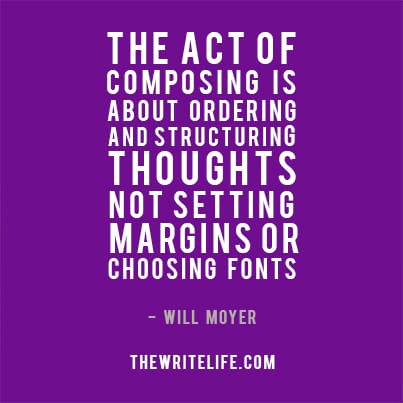
    The act of composing is about ordering and structuring thoughts. It’s not about setting your margins or choosing fonts or italicizing phrases. But word processors are notoriously bad at letting you just compose.

    MS Word Just Say No

    Word processors conflate composition with typesetting. Making stylistic decisions about your work is a separate mental process from penning your thoughts. When writing software forces you to deal with presentational elements, it only distracts from composition. Even if you try to ignore the stylistic decisions, Word will be typesetting your text anyway. And you’re still stuck looking at a bloated interface built for formatting, not composing.

    So during your composition process, skip the apps that want you to make stylistic decisions. Instead, use a plain text editor.

    Editing in plain text

    Plain text editors let you compose in plain, unformatted text. Notepad for Windows and TextEdit for Mac OS X are the standards, but they’re nothing compared to more robust editors. There are fantastic plain text apps that provide a heavenly writing environment, especially compared to the hell of Microsoft Word.

    Here are a few options to get you started:

    • iA Writer and Byword are beloved by Mac users. They also have iOS counterparts, so you can use them on your iPhone and iPad.
    • WriteMonkey and Q10 are Windows-only options. They’ve been around for years and have been battle-tested by many a writer.
    • OmmWriter and Texts are both cross-platform editors, meaning they work on both PCs and Macs. If you use multiple machines with different operating systems, these programs are a great way to maintain a similar writing environment on each device.

    Try composing in several different programs to help you get a feel for which one you prefer. I guarantee they’ll all be a more pleasant experience than your word processor. And if you absolutely have to, you can always turn to a word processor later in your workflow, when you need to format or print a document. (Although, I suspect that if most of your writing is intended for the web, you’ll have little use for it at all.)

    Remember, friends don’t let friends use Microsoft Word. (Like this idea? Click to tweet it.)

    How do you feel about Microsoft Word? Do you have a favorite program for composition?

    Don’t forget to comment so you’re in the running for Will’s ebook giveaway! You could win a free Kindle copy of his latest ebook, Writing for the Web(Update: Martina won!)